Running out of USB-C ports on your desktop? A PCIe expansion card can add rear-panel connections without replacing your motherboard. The right choice depends on how many USB-C and USB-A ports you need, what speeds your devices support, and whether the card needs auxiliary power.
These 10 options range from simple 5Gbps cards to models advertising 10Gbps ports. Before buying, check your available PCIe slot, operating-system support, and the card’s power requirements.
Best 10 Pcie USB C Expansion Card Picks for 2026
Most Ports
ELUTENG 8-Port USB-A and USB-C Card

- Six USB-A and two USB-C ports
- Theoretical maximum of 10Gbps
- No external power connection required
Best For: Windows desktops needing many mixed USB ports
Balanced Mix

- Two USB-A and two USB-C ports
- Theoretical maximum of 10Gbps
- No external power adapter needed
Best For: Windows users wanting an even connector mix
All USB-C

- Four USB-C ports
- 5Gbps shared across all ports
- Self-powered; full-height bracket
Best For: Full-height desktops needing four powered USB-C connections
Cross-Platform Pick
StarTech 5-Port USB 10Gbps Card

- Four external USB-C ports; one internal USB-A
- Up to 10Gbps USB transfer speeds
- Optional SATA power; no DP Alt Mode or USB PD
Best For: Supported Windows, macOS, or Linux desktops needing external and internal ports
Mixed-Port Pick
Sinefine 4-Port USB-A and USB-C Card
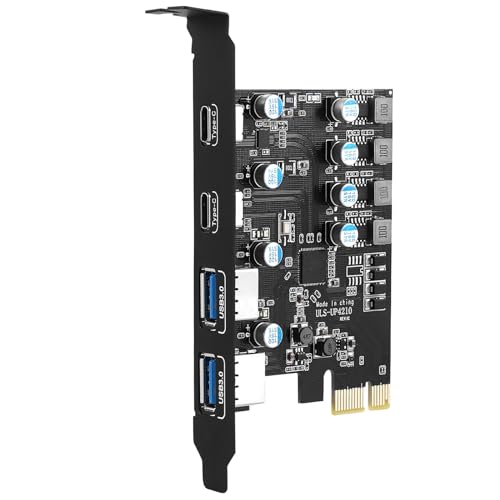
- Two USB-A plus two USB-C ports
- Shared 5Gbps maximum
- No additional PSU cable required
Best For: Desktops needing both USB connector types
Eight-Port Pick
YEELIYA USB 3.2 Gen 2 Expansion Card

- Four USB-C and four USB-A ports
- Stated 10Gbps bandwidth
- Requires a PCIe x4, x8, or x16 slot
Best For: Systems needing many external USB data ports
USB-C-Only Pick

- Two USB-C ports rated up to 5Gbps each
- No additional PSU cable required
- Includes a low-profile bracket
Best For: Standard or slim desktops needing two USB-C ports
Most Mixed Ports
YEELIYA 7-Port USB 3.0 PCIe Card
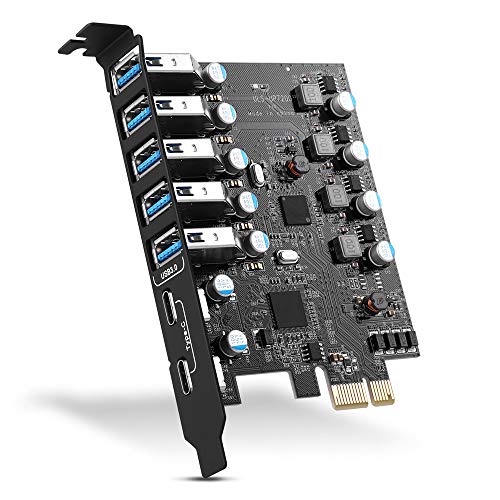
- Five USB-A and two USB-C ports
- Up to 5Gbps transfer rates
- Fits PCIe x1, x4, x8, or x16 slots
Best For: Desktops needing a mix of USB-A and USB-C ports
Best Heavy-Duty Pick
YEELIYA 4-Port USB-C PCIe Card

- Four USB-C ports
- Up to 5Gbps transfer rates
- Standard and low-profile brackets included
Best For: Desktops needing four USB-C connections
Faster Data Pick
FANBLACK 7-Port USB 3.2 Gen 2 Card

- Four USB-A and three USB-C ports
- Up to 10Gbps per port when used alone
- Two groups share up to 20Gbps total bandwidth
Best For: Faster USB data transfers with mixed port types
Most Ports – ELUTENG 8-Port USB-A and USB-C Card
If your desktop needs more connections, this pcie usb c expansion card adds six USB-A and two USB-C ports. Its stated maximum USB 3.2 Gen 2 speed is a theoretical 10Gbps.
Best For: Windows desktop users who prioritize port count and want both connector types.
Pros:
- Eight ports accommodate a mix of existing USB-A and newer USB-C peripherals.
- Independent port capacitors provide power without an external power connection.
- Overcurrent protection cuts power during a fault and restores it after the fault is resolved.
Cons:
- Only two of the eight ports are USB-C.
- The supplied specifications do not clarify how bandwidth is shared across ports.
Choose this one for connection capacity rather than an all-USB-C setup. Check your available PCIe slot and system requirements before ordering, since the supplied compatibility details are limited.
Balanced Mix – ELUTENG 4-Port USB 3.1 Card
This pcie usb c expansion card gives a Windows desktop two USB-C and two USB-A ports without requiring an external power adapter. It supports a theoretical USB 3.1 Gen 2 maximum of 10Gbps, though actual transfer speeds depend on connected devices.
Best For: Users who want an even split of USB-A and USB-C connections.
Pros:
- Two ports of each connector type suit mixed peripherals.
- Fits PCIe x1, x4, x8, and x16 slots.
- Separate port capacitors and aluminum cooling fins support stable operation.
Cons:
- Windows 7, XP, and Vista require a manual driver installation.
- Some PCIe 4.0 motherboards may need PCIe 3.0 compatibility enabled in BIOS.
It’s a practical middle ground if you don’t need eight ports. Verify your Windows version and motherboard settings before installation.
All USB-C – FebSmart FS-U304C-Pro
For a desktop with several USB-C peripherals, this pcie usb c expansion card adds four Type-C ports through a PCIe x1 interface. The ports share a total 5Gbps bandwidth, so it is better suited to adding connections than maximizing simultaneous transfer speeds.
Best For: Full-height desktops that need four USB-C ports without an additional power cable.
Pros:
- Four USB-C ports support a fully Type-C peripheral setup.
- Self-powered design specifies up to 5V/3A per port without a PSU cable.
- Plug-and-play support is listed for Windows 8.x through 11 and most Linux kernels.
Cons:
- All four ports share 5Gbps total bandwidth.
- The included full-height bracket does not fit slim PCs.
- macOS is not supported; Windows 7 and earlier need drivers.
The power provision makes this worth considering for higher-draw USB-C accessories, provided your full-height PC has an open PCIe slot and shared bandwidth meets your needs.
Cross-Platform Pick – StarTech 5-Port USB 10Gbps Card
This pcie usb c expansion card adds four external USB-C ports and one internal USB-A port through a PCIe x4 connection. With stated USB transfer speeds up to 10Gbps and support across Windows, macOS, and Linux, it suits desktops where operating-system flexibility matters.
Best For: Users who need four external USB-C connections plus an internal USB-A port across supported operating systems.
Pros:
- Four external USB-C ports and one internal USB-A port.
- Optional SATA power can supply up to 15W per USB-C port when motherboard power is insufficient.
- Two-year warranty and lifetime 24/5 technical assistance are included.
Cons:
- Requires an available PCIe x4, x8, or x16 slot.
- Does not support DisplayPort Alt Mode or USB Power Delivery.
- Additional SATA power requires a power connection when needed.
Choose it for its port layout and broad stated OS compatibility, but don’t mistake its USB-C connectors for video output or USB Power Delivery support.
Mixed-Port Pick – Sinefine 4-Port USB-A and USB-C Card
The Sinefine UP4210 is a practical pcie usb c expansion card if you need both connector types: it adds two USB-C and two USB-A ports through a PCIe x1 connection. Its four USB 3.0 ports share a stated maximum of 5Gbps.
Best For: Desktop users adding a mix of USB-A and USB-C peripherals without connecting an extra power cable.
Pros:
- Provides two USB-C and two USB-A ports.
- Draws device power through the card without an additional PSU cable; rated up to 5V/3A per port.
- Supports Windows 8, 10, and 11 and Linux without a driver, according to the supplied notes.
Cons:
- The stated 5Gbps maximum is shared across all four ports.
- Windows 7 needs a driver, and the notes flag possible compatibility issues with some Dell motherboards on Windows 10 or 11.
- Does not support BC 1.2 charging.
Choose this card for port variety rather than maximum simultaneous transfer speed. Its no-extra-cable design simplifies installation, but check motherboard compatibility if you have a Dell desktop.
Eight-Port Pick – YEELIYA USB 3.2 Gen 2 Expansion Card
This YEELIYA pcie usb c expansion card adds four USB-C and four USB-A ports to a desktop, workstation, or NAS with an available PCIe x4, x8, or x16 slot. Its stated 10Gbps bandwidth makes it worth considering when you have several wired peripherals or external drives to connect.
Best For: Systems that need eight external USB data ports, split evenly between Type-A and Type-C.
Pros:
- Adds eight ports: four USB-A and four USB-C.
- Rated for 10Gbps bandwidth.
- Fits PCIe x4, x8, and x16 slots.
Cons:
- USB-C ports carry data only; they do not support video output or Thunderbolt.
- Older supported Windows versions, including XP, Vista, and 7, require a driver.
- The supplied installation instructions warn that some narrow rear-slot layouts may need case modification.
The main draw is the high port count. Before buying, confirm that your PC has a suitable PCIe slot and enough rear-panel clearance for the card’s port arrangement.
USB-C-Only Pick – FebSmart Dual-Port USB-C Card
The FebSmart FS-U302C-Pro is a focused pcie usb c expansion card for desktops that need two Type-C connections rather than a mix of ports. It uses a PCIe x1 interface and provides two USB 3.0 USB-C ports, each rated for up to 5Gbps.
Best For: Adding two USB-C peripheral ports to a standard or slim desktop without an extra power cable.
Pros:
- Two USB-C ports, each rated up to 5Gbps.
- Self-powered design requires no additional PSU cable and is rated up to 5V/3A per port.
- Includes a low-profile bracket for slim PCs.
- Plug-and-play support is stated for Windows 8.x, 10, and 11 and most Linux kernels.
Cons:
- No USB-A ports.
- Does not support fast charging or Mac OS X.
- Windows 7 and earlier require a driver.
This is the straightforward choice when USB-C port count matters more than connector variety. Check that your desktop has an open PCIe slot, and swap to the included low-profile bracket if your case needs it.
Most Mixed Ports – YEELIYA 7-Port USB 3.0 PCIe Card
If your desktop needs more connections of both kinds, this pcie usb c expansion card adds two USB-C and five USB-A ports through a PCIe slot. Its USB 3.0 ports support transfer rates up to 5Gbps, subject to the connected device.
Best For: Desktop users who want more USB-A ports alongside a couple of USB-C ports.
Pros:
- Seven external ports accommodate a range of peripherals.
- Fits PCIe x1, x4, x8, or x16 slots.
- Backward compatible with USB 2.0 and 1.1 devices.
Cons:
- Limited to USB 3.0 speeds of up to 5Gbps.
- Windows XP, Vista, 7, and Server require driver installation.
This is the practical pick when port count matters more than faster USB transfer speeds. Check your available PCIe slot and operating system before installing.
Best Heavy-Duty Pick – YEELIYA 4-Port USB-C PCIe Card
For a desktop with too few Type-C sockets, this pcie usb c expansion card adds four USB-C ports via a PCIe x1 interface. It supports USB 3.0 transfers up to 5Gbps, though connected devices can limit actual speeds.
Best For: Desktop users who need four additional USB-C ports rather than a mix of connector types.
Pros:
- Includes both a pre-installed 12 cm bracket and an 8 cm low-profile bracket.
- Draws power from the PCIe slot without an external power adapter.
- Fits PCIe x1, x4, x8, or x16 slots.
Cons:
- No USB-A ports for peripherals with Type-A plugs.
- Windows 7 and XP require driver installation.
The included bracket options make this a flexible fit for different desktop cases. Choose it for additional Type-C data connections, not for speeds above 5Gbps.
Faster Data Pick – FANBLACK 7-Port USB 3.2 Gen 2 Card
If transfer speed is a priority, this pcie usb c expansion card provides three USB-C and four USB-A ports. Each port supports up to 10Gbps when used alone; the seven ports are split into two groups that share 10Gbps of bandwidth each.
Best For: Desktop users connecting multiple USB data devices who want faster transfers and both port types.
Pros:
- Seven external USB 3.2 Gen 2 ports offer a useful connector mix.
- Up to 20Gbps total bandwidth across two port groups.
- Draws power through the PCIe slot without an additional power cable.
Cons:
- USB-C ports do not support Power Delivery, video output, or Thunderbolt.
- Ports within each group share bandwidth, so simultaneous transfers will not all run at 10Gbps.
This card offers the strongest stated data-transfer capability of these three options, but its USB-C sockets are for data devices—not displays or fast charging. Check the card’s physical fit before installation, especially in a case with a narrow rear slot area.
How We Picked the Best Pcie USB C Expansion Card
We focused on practical differences visible in the listed specifications: USB-C versus USB-A port counts, advertised transfer speeds, PCIe installation requirements, and whether a card is described as self-powered. The selection covers USB-C-only cards and mixed-port models with two to eight total ports. Treat advertised speeds as ceilings, not guaranteed transfer rates; actual performance depends on the card’s controller, PCIe connection, attached devices, and shared bandwidth. Confirm the current listing and manufacturer documentation before ordering.
Quick Comparison: Which Port Layout Fits?
If you mainly connect USB-C accessories, start with the two-port or four-port USB-C-only cards. A two-port option leaves room for a smaller, simpler upgrade; a four-port option suits several Type-C devices. If you still use USB-A peripherals, look at the mixed-port cards: the listed configurations include 2A/2C, 4A/3C, 4A/4C, 5A/2C, and 6A/2C. The five-port StarTech card is another option to check if you want an advertised 10Gbps model; verify its exact connector layout before buying. Prioritize the ports you will actually use over the highest total port count.
Key Buying Factors for a PCIe USB-C Expansion Card
Speed and Shared Bandwidth
Several cards advertise 5Gbps USB speeds, while others advertise 10Gbps. Match the card to your devices: a faster card will not make a 5Gbps device transfer at 10Gbps. Also distinguish per-port speed claims from a card’s total bandwidth claim. Multiple busy ports may share a controller or PCIe link, so simultaneous transfers can be slower than the headline figure.
Slot, Case, and Power Compatibility
Check the card’s required PCIe slot and the open slots in your motherboard; a physically available slot may be blocked by a graphics card. Make sure the bracket fits your case, especially if you have a low-profile desktop. “Self-powered” does not necessarily mean every high-draw accessory will work without limits. Review any auxiliary-power connector requirement and the card’s stated power delivery to ports, particularly for bus-powered drives.
Operating System and USB-C Features
Verify driver support for your operating system rather than assuming that a listing naming Windows versions covers your setup. A USB-C connector alone does not establish support for monitor output, Thunderbolt, USB4, or laptop-style charging. If you need any of those features, look for an explicit specification.
Who Should Buy Which Pcie USB C Expansion Card?
Choose a two-USB-C 5Gbps card for a modest port shortage and everyday accessories. Pick a four-USB-C card when connector count matters more than retaining USB-A. Mixed-port cards make more sense for desktops serving older peripherals alongside newer USB-C devices; seven- and eight-port models suit larger setups if you confirm their bandwidth and power provisions. For fast external storage, shortlist the advertised 10Gbps cards, then check the controller, PCIe requirements, and device compatibility before paying extra.