Using two computers with the same keyboard, mouse, and displays can quickly turn a productive desk into a cable-management problem. The right KVM switch lets you share peripherals and dual monitors while switching between systems with a button or hotkey.
These 10 KVM switches for dual monitors cover common setups, from 4K office workstations to high-refresh gaming PCs and USB-C laptop docks. Before buying, confirm the video ports, resolution, refresh rate, and required cables match both computers and monitors.
Best 10 Kvm Switches for Dual Monitors Picks for 2026
Best High-Resolution HDMI Pick

- 8K@60Hz and 4K@120Hz support
- Extended or mirrored display modes
- Four USB 3.0 ports with external control
Best For: High-resolution HDMI dual-monitor desktop setups
Best Complete HDMI Kit

- 4K@60Hz dual-monitor support
- Four USB 3.0 ports with USB-C
- Includes HDMI, USB, power, and control accessories
Best For: Ready-to-install home and office HDMI setups
Best DisplayPort Choice

- DisplayPort support up to 4K@144Hz
- Extended and copy display modes
- Four USB 3.0 ports and wired controller
Best For: High-refresh-rate DisplayPort workstations
Best Compact 8K Option

- 8K@60Hz and 4K@120Hz support
- Compact metal enclosure
- Four USB 3.0 ports and two switching methods
Best For: Space-conscious HDMI dual-monitor workstations
Best HDMI + DisplayPort Value

- Two-monitor extended or copy mode
- 4K@60Hz support
- Four USB 3.0 peripheral ports
Best For: Users with matching HDMI and DisplayPort connections
Best USB-C Docking Option
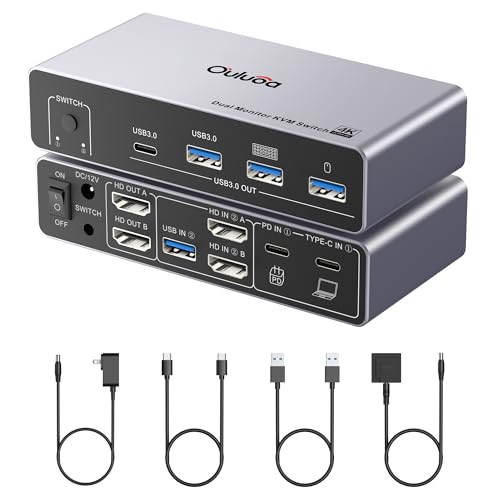
- Supports desktop and laptop switching
- Up to 8K@60Hz desktop output
- 100W PD and four USB ports
Best For: Desktop-and-laptop workstations using USB-C
Best High-Refresh DisplayPort Pick

- 4K@144Hz and 8K@60Hz support
- Two monitors and four USB devices
- Extended and mirror display modes
Best For: Native DisplayPort gaming and creator setups
Best Overall

- Dual 4K@60Hz monitor support
- Four USB 3.0 ports, including USB-C
- Adaptive EDID and wired remote
Best For: Balanced home-office and professional workstations
Best for High Refresh Rates

- Up to 8K@60Hz or 4K@120Hz
- Four USB 3.0 peripheral-sharing ports
- Includes external 12V power adapter
Best For: Gaming, editing, and high-refresh workstations
Best High-Resolution HDMI Pick – 8K Dual-Monitor KVM
If you need kvm switches for dual monitors with high refresh-rate support, this HDMI model combines dual-display switching with 8K@60Hz and 4K@120Hz capability. It can share four USB devices between two computers, but each computer needs two HDMI outputs for extended mode.
Best For: Users with two HDMI-equipped computers who want high-resolution dual-monitor switching and shared USB peripherals.
Pros:
- Supports up to 8K@60Hz and 4K@120Hz.
- Offers both mirrored and extended display modes.
- Includes four USB 3.0 ports and an external controller.
- 12V power supply supports more stable USB operation.
Cons:
- Requires two HDMI ports on each computer for extended dual-monitor output.
- Does not support keyboard shortcut switching.
This is a strong fit for a desktop setup that prioritizes video quality and USB sharing. Confirm your computers support dual HDMI displays before buying.
Best Complete HDMI Kit – UGREEN 4K Dual-Monitor KVM
For shoppers comparing kvm switches for dual monitors, the UGREEN AK500 is a convenient 4K HDMI option with included HDMI and USB cables, power adapters, and a desktop controller. It supports extended or mirrored displays and switches two computers using one keyboard and mouse.
Best For: Home or office users who want a ready-to-connect HDMI dual-monitor KVM package.
Pros:
- Supports dual monitors at up to 4K@60Hz.
- Includes four USB 3.0 ports, including one USB-C port.
- Package includes four HDMI cables, USB cables, power adapters, and controller.
- Works with Windows, macOS, and Linux.
Cons:
- It is an HDMI model, not DisplayPort.
- Each computer needs two HDMI cables and one USB-A connection.
- Does not support EDID emulation or hotkey switching.
The included accessories make this one of the easier options to deploy, provided your computers have the required HDMI connections. Keep output HDMI cables within the stated 3-meter recommendation.
Best DisplayPort Choice – 4K 144Hz Dual-Monitor KVM
This DisplayPort model is a compelling choice among kvm switches for dual monitors if your computers and screens use DP connections. It supports 4K@144Hz, four USB 3.0 peripherals, and both extended and copy modes, with switching available from the unit or wired desktop controller.
Best For: DisplayPort users who want high-refresh-rate dual-monitor control for work or compatible media and gaming setups.
Pros:
- Supports 4K resolution at up to 144Hz.
- Provides extended and mirrored display modes.
- Shares four USB devices through USB 3.0.
- Includes a wired controller and 12V power adapter.
Cons:
- DisplayPort cables are not included.
- Each computer requires two DP cables and one USB cable.
- Does not support hotkey switching.
Choose this model when DisplayPort compatibility and refresh rate matter more than an all-in-one cable bundle. Verify that each computer supports multiple monitors and budget separately for DP cables.
Best Compact 8K Option – Slim HDMI Dual-Monitor KVM
This compact HDMI switch is worth considering when shopping for kvm switches for dual monitors and you want 8K capability without a large desktop footprint. It supports 8K@60Hz, 4K@120Hz, four USB 3.0 devices, and physical or desktop-controller switching.
Best For: Users seeking a space-saving HDMI KVM for two computers with compatible dual-monitor outputs.
Pros:
- Supports 8K@60Hz and 4K@120Hz.
- Provides copy and extended display modes.
- Four USB 3.0 ports support peripherals and storage devices.
- Compact metal design measures approximately 5.56 by 2.52 by 1.37 inches.
Cons:
- Each computer must have two HDMI ports and one USB-A port.
- Docking stations and adapter cables are not supported.
- Both monitors show one computer’s signal at a time, and hotkey switching is unavailable.
Its compact enclosure and broad operating-system compatibility suit tidy workstations. The connection requirements are strict, so check your source computers before relying on adapters or a dock.
Best HDMI + DisplayPort Value – Dual-Monitor 4K KVM
If you need kvm switches for dual monitors and both computers provide matching HDMI and DisplayPort outputs, this model offers a straightforward way to share two displays, a keyboard, mouse, and USB peripherals. It supports extended or copy mode and switches from the unit or its wired desktop controller.
Best For: Office users with two computers that have dedicated HDMI and DisplayPort outputs and need 4K at 60Hz.
Pros:
- Supports two monitors in extended or copy mode at up to 4K@60Hz.
- Four USB 3.0 ports support peripherals and transfer speeds up to 5Gbps.
- Offers both onboard-button and wired-controller switching.
- Includes an external 12V power adapter for stable USB operation.
Cons:
- It does not convert signals: HDMI must connect to HDMI, and DisplayPort to DisplayPort.
- Each computer must connect its HDMI and DisplayPort ports to the corresponding ports on the KVM.
- Hotkey switching is not supported.
This is a practical choice when your existing computers and monitors already match its port layout. Confirm dual-display support and 4K@60Hz compatibility across your cables and devices before buying.
Best USB-C Docking Option – 8K Dual-Monitor KVM
Among kvm switches for dual monitors, this USB-C model is designed for a desktop-and-laptop setup. It can share two HDMI displays and USB accessories while providing up to 100W PD charging for a connected laptop, with switching handled by the included wired remote.
Best For: Users combining a desktop and USB-C laptop who want dual HDMI displays, shared peripherals, and laptop charging.
Pros:
- Supports two HDMI monitors with up to 8K@60Hz from the desktop connection.
- Provides 100W PD charging for a compatible laptop.
- Includes three USB 3.0 ports and one USB-C port for shared accessories.
- Comes with a wired remote, required cables, power adapter, and a 12-month warranty.
Cons:
- Windows is required for MST display mode; macOS operates in SST mode only.
- The laptop connection provides 4K@60Hz via USB-C, while the listed 8K output applies to the desktop connection.
- HDMI cables within 6.56 feet are recommended for stable transmission.
This model stands out for mixed desktop-and-laptop workstations because it combines KVM switching with docking-style expansion and charging. Check your laptop’s USB-C display capability and your operating system’s display-mode requirements first.
Best High-Refresh DisplayPort Pick – 4K@144Hz KVM
For a DisplayPort-based setup, this is one of the more performance-focused kvm switches for dual monitors. It switches two computers across two monitors and four USB devices, with support for 4K@144Hz, 8K@60Hz, extended mode, and mirror mode.
Best For: DisplayPort users who want high refresh rates for gaming, creation, or smooth multitasking.
Pros:
- Supports up to 4K@144Hz and 8K@60Hz, with extended and mirror modes.
- Allows two computers to share two monitors and up to four USB devices.
- Offers switching through the main Select button or included desktop controller.
- External 12V power helps provide stable operation for connected USB devices.
Cons:
- Each computer needs two DisplayPort cables and one USB-A cable; DP cables are not included.
- Both computers must have two DisplayPort outputs, and adapter cables are not recommended.
- Hotkey switching is not supported.
This is a strong fit for a native DisplayPort workstation where high refresh rates matter. Verify that both computers and monitors support the desired resolution and refresh rate, and budget for the required DisplayPort cables.
Best Overall – Heravo 4K Dual-Monitor KVM
For shoppers comparing kvm switches for dual monitors, the Heravo combines dual-computer, dual-monitor switching with 4K@60Hz output and broad USB sharing. Its adaptive EDID and wired remote are useful for a tidy workstation where stable display recognition and convenient switching matter.
Best For: Home offices, programmers, designers, IT professionals, and remote workers who want a balanced dual-monitor setup.
Pros:
- Supports two computers and two monitors with up to 4K@60Hz resolution.
- Four USB 3.0 ports include three USB-A ports and one USB-C port for sharing peripherals.
- Adaptive EDID is designed to reduce flicker, resolution mismatch, and recognition issues.
- Switches through the front button or included wired remote, with no driver installation required.
Cons:
- Full setup requires six HDMI 2.0 cables, which are not listed among the included accessories.
- Switching is handled by the button or wired remote; keyboard hotkey switching is not specified.
This is a strong all-around choice if your priority is dependable 4K dual-monitor switching, fast USB peripheral sharing, and flexible placement through the remote controller.
Best for High Refresh Rates – 8K/4K 120Hz Dual-Monitor KVM
Among kvm switches for dual monitors, this model stands out for high-resolution and high-refresh output. It supports up to 8K@60Hz or 4K@120Hz, while its external 12V power adapter helps provide a stable environment for connected USB peripherals.
Best For: Gaming, video editing, graphic design, and workstations that need 4K@120Hz or 8K@60Hz capability.
Pros:
- Supports up to 8K@60Hz and 4K@120Hz for demanding visual workloads.
- Four USB 3.0 ports share keyboards, mice, printers, scanners, webcams, and other devices.
- Includes both a panel button and wired controller for one-touch source switching.
- External 12V power is intended to support a more stable USB operating environment.
Cons:
- Each computer must have two HDMI outputs and support mirrored or extended desktop modes.
- Keyboard hotkey switching is not supported.
- Passive adapters and standard conversion cables will not carry video through the switch; active adapters are required.
This model is the better fit when refresh rate and resolution take priority, but buyers should verify their computers, cables, monitors, and adapter types before ordering.
Best Value – HDMI 4K@60Hz Dual-Monitor KVM
This HDMI switch is a practical option for shoppers seeking kvm switches for dual monitors without needing high-refresh 4K. It connects two computers to two HDMI monitors, shares four USB 3.0 devices, and offers front-button or wired-remote switching at up to 4K@60Hz.
Best For: Office users and home workstations with compatible computers that already support two HDMI displays.
Pros:
- Supports dual-monitor output at up to 4K@60Hz, with backward compatibility for lower resolutions.
- Four USB 3.0 ports provide up to 5Gbps theoretical transfer speeds and support older USB devices.
- Includes front-panel and wired-remote switching options.
- Metal housing is designed for heat dissipation and operation up to 50°C.
Cons:
- Each computer needs two HDMI cables and one USB-A cable; cables are not fully supplied in the listed packing information.
- Both monitors display the selected computer’s source rather than separate sources from both computers.
- Keyboard hotkey switching is not supported, and docking stations or additional adapter cables are not supported.
Choose this model for a straightforward 4K@60Hz dual-monitor office setup, provided each computer has the required two HDMI ports and USB-A connection.
How We Picked These Kvm Switches for Dual Monitors
We focused on dual-monitor KVM models that support two computers and provide practical peripheral sharing. The selection includes HDMI, DisplayPort, mixed HDMI/DisplayPort, and USB-C designs, with advertised support ranging from 4K at 60Hz to 8K at 60Hz and 4K at 144Hz. We also considered USB 3.0 availability, which matters when sharing keyboards, mice, storage devices, webcams, or printers.
Specifications can vary by input, output, cable quality, and operating system. Treat maximum resolution and refresh-rate claims as requirements to verify against your complete setup rather than guarantees for every combination of devices.
Quick Comparison
| Setup type | Best suited to | Features to prioritize |
|---|---|---|
| HDMI dual-monitor KVM | Office PCs, consoles, and common displays | 4K support, sufficient HDMI bandwidth, USB 3.0 |
| DisplayPort KVM | Gaming PCs and high-refresh monitors | 144Hz support, DisplayPort version, adaptive-sync compatibility |
| Mixed-port KVM | Computers with different video outputs | Correct port mapping and included adapters or cables |
| USB-C KVM dock | Laptops and compact workstations | Host bandwidth, charging, display output support, power delivery |
| 8K or high-refresh KVM | Premium video and gaming systems | Resolution at the desired refresh rate, HDR, and cable certification |
Key Buying Factors for Kvm Switches for Dual Monitors
Video Ports and Monitor Layout
Match the switch to the outputs on both computers and the inputs on both monitors. Two HDMI outputs are simplest for an HDMI workstation, while DisplayPort models are often better for gaming displays. A mixed-port switch can be useful when one computer uses HDMI and the other uses DisplayPort, but check whether both outputs remain active in the exact configuration you need.
Resolution, Refresh Rate, and Bandwidth
Choose based on the highest real requirement, not only the headline number. A switch advertised as 8K may support 8K at 60Hz but lower resolutions at different rates. For gaming, verify 144Hz support at your target resolution. Also check HDR, color depth, HDCP, and adaptive-sync support if those features are important.
USB Connectivity and Switching Behavior
USB 3.0 ports are preferable for fast storage and webcams, while basic USB 2.0 may be adequate for a keyboard and mouse. Confirm how switching works: front-panel buttons, wired remotes, hotkeys, or automatic switching. Some devices require software or specific keyboard shortcuts.
Power, Cables, and Compatibility
High-bandwidth dual-display KVMs may need external power. USB-C models also require attention to host bandwidth, charging support, and whether the laptop can drive two extended displays. Budget for certified HDMI or DisplayPort cables if your current cables cannot handle the intended signal.
Who Should Buy Which Kvm Switches for Dual Monitors?
Choose a 4K HDMI model for a straightforward home-office setup with two standard monitors. Pick a DisplayPort high-refresh model for gaming or graphics work where smooth motion matters. A mixed HDMI/DisplayPort unit suits desks built around different computer generations. A USB-C docking KVM is the most convenient option for switching between a desktop and laptop, provided the laptop supports the required display mode. For newer premium monitors, consider an 8K-capable model, but only pay extra when your computers, cables, and displays can use that bandwidth.