If you’re looking to enhance your device connectivity, PCIe USB 3.2 expansion cards are a smart investment. These cards not only provide a variety of USB ports but also deliver impressive data transfer speeds. With options available for desktops and workstations, you can easily find a solution that fits your needs. Let’s explore the top choices available and see how they can elevate your setup.
ELUTENG PCIe USB 3.2 Expansion Card (8 Ports)

If you’re looking to expand your USB connectivity without sacrificing speed or stability, the ELUTENG PCIe USB 3.2 Expansion Card is an excellent choice. With eight ports—six USB Type-A and two USB Type-C—you can connect multiple devices seamlessly. It supports USB 3.2 Gen2, offering a theoretical data transfer rate of up to 10 Gbps. Built with high thermal conductivity alloy, it effectively manages heat, ensuring reliability. Plus, each port features independent overcurrent protection, so you don’t have to worry about device malfunctions. Weighing just 3.87 ounces, this compact card is a fantastic addition to any Windows system.
Best For: Users seeking to enhance their Windows system with extensive USB connectivity options and high-speed data transfer capabilities.
Pros:
- Supports a wide range of USB devices with six Type-A and two Type-C ports.
- Offers a high data transfer rate of up to 10 Gbps, ensuring quick file transfers.
- Features independent power modules and overcurrent protection for enhanced safety and reliability.
Cons:
- Limited compatibility as it is designed specifically for Windows operating systems.
- Some users may require additional drivers for optimal performance.
- Physical size may be a concern for compact systems with limited space for expansion cards.
ELUTENG PCIe USB 3.0 Expansion Card (7 Ports)

The ELUTENG PCIe USB 3.0 Expansion Card with seven ports is ideal for users who need to connect multiple USB devices simultaneously without compromising performance. With a theoretical speed of up to 5Gbps, it’s ten times faster than USB 2.0, making file transfers a breeze. Each port operates independently, supplying 5V2A power to your devices thanks to its robust 2-phase power supply. Compatible with various Windows versions, installation is straightforward, especially for newer systems that don’t require additional drivers. Plus, the solid capacitors guarantee high stability and a long lifespan, enhancing your overall connectivity experience.
Best For: Users needing to connect multiple USB devices simultaneously with high-speed data transfer capabilities.
Pros:
- High-speed performance with theoretical speeds up to 5Gbps, ten times faster than USB 2.0.
- Independent power supply for each port, allowing for stable connections and adequate power (5V2A) to connected devices.
- Easy installation on various Windows versions, especially for systems like Windows 8, 10, and 11 that do not require additional drivers.
Cons:
- Not compatible with Mac systems or PlayStation consoles (PS3/PS4).
- Driver installation required for older Windows versions (XP and 7), which may be inconvenient for some users.
- Limited to PCI-E slots, which may not be available in all computer setups.
2-Ports USB 3.0 PCI Express Expansion Card

For users needing to expand their desktop or workstation’s USB capabilities, the FS-U2S-Pro 2-Ports USB 3.0 PCI Express Expansion Card stands out with its impressive data transfer speed of up to 5Gbps. This card’s built-in FebSmart Self-Powered Technology means you won’t need an extra power supply. Each USB-A port delivers 5V/2A, making it perfect for high-power devices like USB industrial cameras. It’s compatible with various platforms and supports plug-and-play on most modern operating systems. Just confirm you have an available PCIe X1 slot and switch to the low-profile bracket if you’re using a slim PC.
Best For: Users looking to expand USB connectivity for their desktop or workstation, especially those using high-power USB devices.
Pros:
- High data transfer speeds of up to 5Gbps for quick file transfers.
- Built-in self-powered technology eliminates the need for an additional power supply.
- Wide compatibility with various operating systems and hardware platforms.
Cons:
- Driver installation required for Windows XP, Vista, 7, and earlier server versions, which may be inconvenient for some users.
- Not compatible with PCI slots, limiting installation options.
- Slim PC users must manually switch brackets, which may require additional effort during setup.
PCIE USB 3.0 Expansion Card with 7 Ports (5 Type-A and 2 USB C)
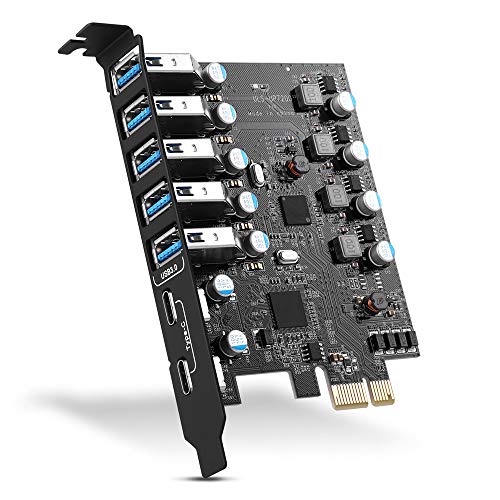
Designed for users who need extensive connectivity, the PCIe USB 3.0 Expansion Card with 7 ports (5 Type-A and 2 USB C) offers a remarkable solution for enhancing your computer’s USB capabilities. With support for transfer rates up to 5Gbps, you can easily connect your HD videos, music, and data files. It’s compatible with various operating systems, including Windows 10 and macOS, requiring no driver installation for those versions. Installation is quick and straightforward, allowing you to plug in your devices in no time. Plus, enjoy peace of mind with a 2-year warranty and 24/7 customer support.
Best For: Users seeking to expand their computer’s USB connectivity with multiple ports for high-speed data transfer.
Pros:
- Supports transfer rates up to 5Gbps, ideal for HD videos and large data files.
- Easy installation process with no driver needed for Windows 10 and macOS.
- Backward compatibility with USB 2.0 and 1.1 devices ensures versatility.
Cons:
- Driver installation is required for older operating systems like Windows XP and Vista.
- Limited to PCIe sockets, which may not be available on all motherboards.
- Performance may vary based on the type of devices connected and the overall system configuration.
4 Ports USB 3.0 PCI Express Expansion Card for Desktop PCs

If you’re looking to expand your desktop’s connectivity, the 4 Ports Superspeed USB 3.0 PCI Express Expansion Card is an excellent choice. With four USB 3.0 ports, it offers a maximum bandwidth of 5Gbps, perfect for high-power devices like USB industrial cameras and SSD enclosures. Weighing just 3.04 ounces, it fits easily into an empty PCIe X1 slot. Its built-in self-powered technology supports demanding peripherals, while safety features protect your devices. Compatible with various operating systems, you’ll appreciate its plug-and-play functionality on Windows 11 and 10. Just make sure you use USB 3.0 devices to maximize speed.
Best For: Users looking to enhance their desktop’s connectivity with high-speed USB 3.0 ports for demanding devices.
Pros:
- Supports high power consumption devices, making it ideal for USB industrial cameras and SSD enclosures.
- Easy installation with plug-and-play functionality on modern Windows operating systems.
- Built-in safety features protect data and devices from power surges and voltage instability.
Cons:
- Not compatible with low profile brackets, limiting installation in slim PCs.
- Driver installation required for older Windows versions, which may be inconvenient for some users.
- Not supported on MAC OS X, excluding Mac users from benefits.
StarTech.com 2-Port USB PCIe Card (PEXUSB312A3)

The StarTech.com 2-Port USB PCIe Card (PEXUSB312A3) is an excellent choice for users needing high-speed data transfer and additional USB connectivity in their systems. With two SuperSpeed USB-A ports supporting up to 10Gbps each, you’ll experience lightning-fast performance for your devices. The card is compatible with Windows, macOS, and Linux, making installation a breeze, thanks to its full and low-profile brackets. Plus, the ASMedia ASM3142 controller enhances data transfer efficiency, especially with UASP support. Backed by a lifetime warranty and solid customer reviews, this expansion card is a reliable upgrade for your setup.
Best For: Users seeking high-speed data transfer and additional USB connectivity for their computers across various operating systems.
Pros:
- High-Speed Performance: Offers two SuperSpeed USB-A ports with up to 10Gbps each for fast data transfers.
- Broad Compatibility: Works seamlessly with Windows, macOS, and Linux operating systems.
- Flexible Installation: Includes both full-profile and low-profile brackets, making it easy to fit in different system setups.
Cons:
- Limited to PCIe 3.0 x4: Requires a compatible PCIe 3.0 x4 slot, which may not be available on older motherboards.
- Power Limitation: Each USB port is limited to 4.5W, which may not be sufficient for high-power devices.
- Requires Driver Installation for Older OS: While it supports auto drivers for Windows 8 and up, older systems may need manual driver installation.
StarTech.com 2-Port USB 3.2 Gen 2 PCIe Card

For users seeking high-speed data transfer capabilities, the StarTech.com 2-Port USB 3.2 Gen 2 PCIe Card stands out with its dual USB-C ports that offer impressive speeds of up to 10Gbps. This PCI Express 3.0 x4 adapter adds two USB-C SuperSpeed ports to your desktop, providing 5V 3A power for connected devices. It’s easy to install in full or low-profile PCIe slots and is compatible with Windows, macOS, and Linux. While it supports only data transfer, it’s backward compatible with USB 3.0 and 2.0 devices. Plus, you get a 2-year warranty and lifetime technical support.
Best For: Users who require high-speed data transfer through USB-C connections on their desktop PCs.
Pros:
- High-speed data transfer with speeds up to 10Gbps for efficient performance with NVMe drives and SSDs.
- Easy installation with compatibility for both full and low-profile PCIe slots and auto-install drivers for Windows 8 and above.
- Versatile compatibility with various operating systems including Windows, macOS, and Linux, as well as backward compatibility with older USB standards.
Cons:
- Data transfer only; does not support features like DisplayPort Alt Mode, USB Power Delivery, or Thunderbolt devices.
- Limited power output of 15W may not be sufficient for all USB-C devices.
- Requires PCIe slot for installation, which may not be available in all systems.
Sinefine 4 Ports PCI-E to USB 3.0 Expansion Card
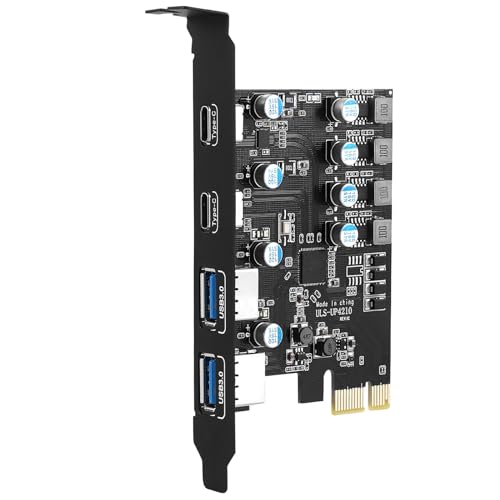
Need to expand your USB capabilities? The Sinefine 4 Ports PCI-E to USB 3.0 Expansion Card is your solution. With 2 USB Type-A and 2 USB Type-C ports, you can effortlessly add four ports via a PCI Express (1X) interface. Experience lightning-fast data transfer speeds up to 5Gbps without needing an external power adapter. Its robust design supports high-power devices, ensuring stability with built-in circuit protectors. Compatible with various motherboards and operating systems, it’s user-friendly too. Plus, with a 360-day warranty and solid customer support, you can trust this expansion card to meet your connectivity needs.
Best For: Users looking to expand their USB connectivity with high-speed transfer options and compatibility across various systems.
Pros:
- Supports high-speed data transfer rates up to 5Gbps, perfect for fast data access.
- No external power adapter required, simplifying installation and reducing clutter.
- Compatible with a wide range of motherboards and operating systems, ensuring versatility.
Cons:
- Windows 7 users need to install drivers, which may be inconvenient.
- Limited to PCI Express (1X) interface, which may restrict some users’ upgrade options.
- Physical dimensions may not fit in compact cases, potentially limiting installation options.
GLOTRENDS 8-Port USB 3.0 PCIe Expansion Card

Looking to expand your USB connectivity? The GLOTRENDS U6A2C 8-Port USB 3.0 PCIe Expansion Card offers two Type-C and six Type-A ports, delivering a solid 5Gbps bandwidth through PCIe 2.0 X1. It’s compatible with Intel, AMD, and ARM platforms, supporting both Windows and Linux systems—just not Mac OS. With power management for multiple devices, you can easily connect high-power gadgets like industrial cameras or VR systems. Weighing just 3.87 ounces, it’s designed for standard cases and requires no extra power supply. With a 4.5-star rating from users, it’s a reliable choice for enhancing your connectivity.
Best For: Users looking to expand their USB connectivity with multiple ports for high-power devices on Windows and Linux systems.
Pros:
- Provides a total of eight USB ports, including two Type-C and six Type-A, for versatile connectivity.
- High bandwidth of 5Gbps through PCIe 2.0 X1 ensures fast data transfer rates.
- Easy installation with plug-and-play support for newer Windows versions and no additional power supply required.
Cons:
- Not compatible with Mac OS, limiting its use for Mac users.
- Regular-profile bracket design may not fit in slim or compact cases.
- Requires driver installation for older Windows versions, which may be inconvenient for some users.
USB PCIe Card 18W Power Delivery Expansion Card

The USB PCIe Card with 18W Power Delivery is ideal for users who require robust charging capabilities alongside high-speed data transfer in their desktop PCs. With three USB 3.0 ports—two Type A and one Type C—you can enjoy data transfer speeds of up to 5Gbps. Each port supports fast charging protocols like QC3.0 and delivers up to 18W, ensuring your devices power up quickly. This card is compatible with various operating systems, including Windows and Mac OS. Installation is straightforward, thanks to included brackets and screws, plus you get reliable customer support for peace of mind.
Best For: Users looking for a PCIe expansion card that offers fast charging and high-speed data transfer capabilities for their desktop PCs.
Pros:
- Supports fast charging protocols like QC3.0, allowing devices to charge quickly while data is being transferred.
- Compatible with a wide range of operating systems, including Windows and Mac, making it versatile for different users.
- Includes safety features such as over-current and short-circuit protection to safeguard connected devices.
Cons:
- Driver installation may be required for older operating systems like Windows XP/Vista/7/Server, which could be inconvenient for some users.
- Limited to three USB ports, which might not be sufficient for users with multiple devices needing connection at the same time.
- Installation might be complicated for those unfamiliar with PCIe cards, despite the included brackets and screws.
Factors to Consider When Choosing a Pcie Usb 3 2 Expansion Card
When you’re choosing a PCIe USB 3.2 expansion card, there are several key factors to keep in mind. You’ll want to take into account the types of ports available, the data transfer speeds, and the power supply requirements. Additionally, compatibility with your system and the installation process are essential to guarantee a smooth experience.
Port Types Available
Choosing the right PCIe USB 3.2 expansion card hinges on understanding the available port types, as they directly impact compatibility with your devices. Most cards feature a mix of USB Type-A and USB Type-C ports. USB Type-A ports are standard for peripherals like keyboards, mice, and external drives, while USB Type-C ports cater to newer devices and offer faster data transfer capabilities. Some expansion cards include multiple ports, such as 6 Type-A and 2 Type-C, allowing for simultaneous connections. Additionally, consider the power supply of the ports, as some provide higher current outputs for charging or powering demanding devices. The right combination guarantees you can connect everything you need efficiently.
Data Transfer Speed
Understanding data transfer speeds is essential for maximizing the performance of your PCIe USB 3.2 expansion card. These cards can reach maximum theoretical speeds of up to 10 Gbps, considerably outpacing the 5 Gbps of USB 3.0. The PCIe version plays an important role; versions 3.0 and higher offer better bandwidth for data transmission. Keep in mind that using multiple ports may share the data transfer speed across devices, which can reduce performance if you’re connecting several high-bandwidth devices at once. USB 3.2 Gen 2 guarantees backward compatibility with older USB standards, ensuring versatile connectivity. Finally, always use high-quality cables and devices that support the same standard to achieve the advertised speeds.
Power Supply Requirements
Power supply requirements are an essential factor to take into account for your PCIe USB 3.2 expansion card. Some cards operate independently without needing extra power, while others do require an additional source. It’s important to know that many cards include independent power modules for each port, which helps guarantee stable operation and reduces interference among connected devices. You’ll notice that the maximum power output per port can vary; some cards can deliver up to 5V2A, making them perfect for high-power devices like USB industrial cameras. For enhanced reliability, look for cards with solid-state capacitors rated for high temperatures. Also, consider cards with overcurrent protection to automatically cut power in case a connected device malfunctions.
Compatibility With Systems
When selecting a PCIe USB 3.2 expansion card, it’s essential to guarantee compatibility with your system’s specifications. First, check that the card fits your motherboard’s PCIe slots—x1, x4, x8, or x16 options are common. Next, verify the operating system compatibility; some cards only support specific Windows versions, while others may also be compatible with macOS or Linux without extra drivers. Make sure the card supports the USB device standards you plan to use, such as USB 3.2, 3.0, or 2.0. Look for backward compatibility to older USB devices, ensuring broader functionality. Finally, confirm that the card’s power requirements align with your system, as some may need additional power sources.
Installation Process
After ensuring compatibility with your system, you can move on to the installation process of your PCIe USB 3.2 expansion card. First, shut down your computer and unplug it from the power source for safety. Open the PC case by removing the side panel to access the motherboard and PCIe slots. Locate an empty PCIe slot—whether x1, x4, x8, or x16—and gently insert the expansion card until it’s securely seated. Secure the card in place with screws, then close the PC case and reconnect the power supply. Once you turn on your computer, most modern operating systems will automatically recognize the card, though you may need to install drivers for older systems or specific setups.
Safety Features Included
Choosing the right PCIe USB 3.2 expansion card involves considering its safety features, which can greatly impact your system’s reliability. Look for cards with overcurrent protection that automatically cut power to a port if a device malfunctions or exceeds current limits. Some models offer independent power modules for each port, guaranteeing a malfunction won’t affect others. High-quality cards utilize solid-state capacitors that withstand extreme temperatures, enhancing safety. Additionally, features like automatic system recovery after fault rectification improve resilience against short circuits. Safety elements such as electronic fuses and stable voltage components protect both connected devices and your computer from potential damage. Prioritizing these features can save you from future headaches and guarantee a smooth connectivity experience.
Cooling and Heat Management
Effective cooling and heat management are essential for ensuring your PCIe USB 3.2 expansion card performs reliably, especially since high data transfer rates can lead to significant heat generation. Look for expansion cards made from materials with high thermal conductivity to enhance heat dissipation and prevent overheating during extended use. Cards featuring independent power modules and capacitors for each port help minimize interference and improve thermal stability, ensuring efficient operation for all USB connections. Additionally, robust heat management often includes solid-state capacitors rated for high temperatures, contributing to long-term reliability. A well-managed thermal environment not only enhances performance but also extends the lifespan of your expansion card and connected devices, reducing the risk of malfunctions caused by excessive heat.
Warranty and Support Options
When you’re in the market for a PCIe USB 3.2 expansion card, it’s important to evaluate the warranty and support options available. Start by checking the warranty period; some cards come with lifetime warranties, while others offer limited coverage. Consider the level of customer support too—look for manufacturers with 24/5 technical assistance instead of just regular business hours. A clear return policy is vital, ideally allowing for a 30-day full refund on defective products. Additionally, thorough customer service options, such as online resources and FAQs, can make troubleshooting easier. Finally, don’t overlook customer ratings; higher reviews often indicate better experiences with warranty claims and support services, providing peace of mind with your purchase.