Choosing among the best KVM over IP switches for dual monitors depends on more than the number of ports. Resolution support, extended-display compatibility, remote BIOS access, USB behavior, and network security all affect whether a switch works smoothly in a workstation, server room, or homelab.
This roundup compares 10 options across remote management, high-refresh gaming, laptop docking, long-distance extension, and professional dual-monitor setups so you can match the hardware to your workflow.
Best 10 Kvm Over Ip Switches for Dual Monitors Picks for 2026
Enterprise 8K Control
TESmart 8-Port Dual-Monitor KVM

- Controls up to eight sources with two monitors
- Supports 8K60 and 4K up to 144Hz
- Includes EDID, USB 3.0, IP, and RS232 control
Best For: High-density IT, control-room, and workstation setups
Remote Server Access
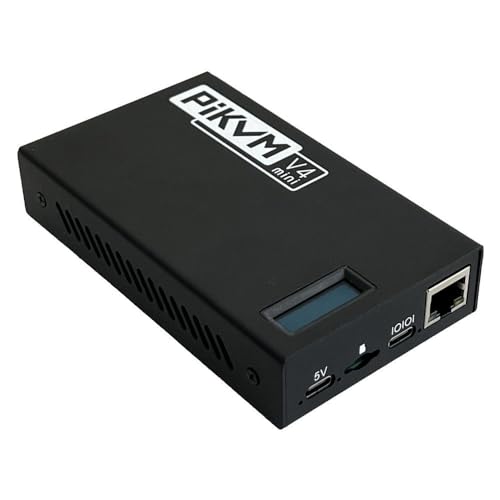
- Enables remote keyboard and mouse control
- Provides BIOS access and storage emulation
- Supports remote power and reset functions
Best For: Headless servers, PC administration, and remote recovery
Two-Host Remote Control

- Controls two computers over a network
- Supports 4K60 video and synchronized audio
- Includes app, web, ZeroTier, and remote power features
Best For: Small remote-work and IT-management deployments
Long-Range AV Extension
TESmart 1080p HDMI KVM Extender

- Extends video and USB control up to 393 feet
- Supports networked multi-point deployments
- Offers four-screen video-wall mode
Best For: Control rooms, monitoring systems, and distant workstations
Best Overall
AV Access 8K Dual-Monitor KVM Dock

- Dual 8K/60Hz or dual 4K/165Hz desktop support
- USB-C video, data, and up to 100W charging
- 11-in-1 hub with fast USB, Ethernet, and SD
Best For: Hybrid workers and power users sharing two monitors locally
Best for Remote Servers

- Remote BIOS/UEFI control through a web browser
- 1080p/60Hz HDMI capture with under-100ms claimed latency
- PoE, open-source firmware, and no subscription
Best For: Homelabs and headless servers needing out-of-band access
Best for Dual Laptops
AV Access 4K Dual-Monitor KVM Dock

- Switches two compatible USB-C laptops across two monitors
- 12-in-1 hub with HDMI, USB, Ethernet, audio, and SD
- Up to 60W charging per laptop and 2–3-second switching
Best For: Home offices sharing a dual-monitor setup between two laptops
Best Mixed-Port Pick
HDMI + DisplayPort Dual-Monitor KVM

- Dual-monitor 4K@60Hz support
- Four USB 3.0 peripheral ports
- Panel and wired-controller switching
Best For: Workstations using both HDMI and DisplayPort
Best High-Refresh Option

- Up to 8K@60Hz output
- 4K@120Hz high-refresh support
- Four USB 3.0 ports and wired control
Best For: Gaming and visual work requiring smooth 4K output
Best Complete HDMI Setup
8K Dual-Monitor KVM with USB Hub

- 8K@60Hz and 4K@120Hz support
- Copy and extended display modes
- Four-port USB 3.0 hub
Best For: HDMI-only desks sharing monitors and USB devices
Enterprise 8K Control – TESmart 8-Port Dual-Monitor KVM
For buyers comparing kvm over ip switches for dual monitors, this TESmart model is a high-capacity option for controlling up to eight computers from one dual-monitor workstation. It combines HDMI 2.1 output, DisplayPort inputs, USB 3.0 sharing, EDID emulation, and IP control in a rackmount-ready enclosure.
Best For: IT rooms, control stations, and advanced work or gaming setups that need eight-source switching and dual displays.
Pros:
- Controls up to eight PCs, laptops, consoles, or NVRs with dual-monitor output.
- Supports up to 8K at 60Hz, plus 4K at 60Hz, 120Hz, and 144Hz.
- Offers EDID emulation, USB 3.0 ports, IP control, RS232, hotkeys, remote, and auto switching.
- Includes eight HDMI/USB KVM cables and eight DisplayPort cables.
Cons:
- Each source needs both HDMI and DisplayPort connections for two-screen operation.
- The monitor outputs are HDMI only.
- Its extensive feature set and 17-inch rackmount form may be more than a small setup needs.
This is the strongest fit here for high-density dual-monitor switching. Confirm your computer and monitor ports before buying, especially if you need native DisplayPort outputs at the displays.
Remote Server Access – PiKVM V4 Mini
The PiKVM V4 Mini takes a different approach to kvm over ip switches for dual monitors: it is a compact, Raspberry Pi-based remote KVM appliance for controlling a server or PC over a network. It focuses on full remote administration rather than local dual-monitor switching.
Best For: Server administrators and technical users who need remote BIOS access, reboot control, or operating-system installation capabilities.
Pros:
- Provides remote keyboard and mouse control through a production-grade, open-source PiKVM platform.
- Supports UEFI/BIOS access and mass-storage emulation for remote system installation.
- Can control remote power and reset functions through hardware connector support.
- Fanless passive cooling and approximately 2.67-watt idle power consumption support quiet operation.
Cons:
- The supplied notes describe one remotely managed computer or server, not multi-source dual-monitor switching.
- It is a specialized remote-management device rather than a conventional local KVM switch.
- Hardware power and reset control depends on compatible connections to the target system.
Choose the V4 Mini when remote administration is more important than managing several local video sources. It is particularly useful for headless systems and recovery tasks, but buyers specifically needing dual-monitor switching should verify the video configuration separately.
Two-Host Remote Control – 4K Two-Computer IP KVM
This two-port unit is a practical choice for buyers evaluating kvm over ip switches for dual monitors who need remote access to two computers rather than a large local switching matrix. It supports browser or app control, 4K video at 60Hz, remote power management, and hardware-based H.264 encoding.
Best For: Remote workers, IT managers, and small installations that need network access to two desktop computers.
Pros:
- Remotely switches between and controls two computers through a web interface or app.
- Supports 3840×2160 at 60Hz with synchronized audio and stated latency below 60ms.
- Includes ZeroTier for cross-network access without manual port forwarding or VPN configuration.
- Offers an LCD IP display and desktop remote power on/off through the included motherboard connection.
Cons:
- It manages two hosts, so it is less suitable for larger multi-computer environments.
- The web interface is specified for LAN access, while WAN access uses the app.
- It requires a 12V power adapter and is not PoE-powered.
With 4K support and both local and remote switching, this model balances manageable scale with useful network features. Check the target computers and network requirements before relying on remote power or WAN access.
Long-Range AV Extension – TESmart 1080p HDMI KVM Extender
For kvm over ip switches for dual monitors in a distributed workspace or control room, this TESmart extender sends 1080p video and USB keyboard/mouse control up to 393 feet over one Cat5/6/7 cable. It is designed for extending a source to a distant display, not for switching multiple local computers between two monitors.
Best For: Control rooms, security monitoring, remote workstations, and AV installations where a source and display must be separated by a long cable run.
Pros:
- Extends 1080p at 60Hz and USB keyboard/mouse control up to 393 feet or 120 meters.
- Supports point-to-point and networked point-to-multipoint configurations.
- Can scale to as many as 32 transmitters and 32 receivers.
- Provides single-screen and four-screen video-wall modes, plus receiver-side audio output.
Cons:
- Video resolution is limited to 1080p at 60Hz, not 4K.
- The supplied kit is a transmitter/receiver pair rather than a conventional dual-monitor KVM switch.
- Both transmitter and receiver require their own 12V power adapter.
This is a strong networking and distance solution when 1080p is sufficient and remote USB control matters. Buyers seeking high-resolution dual-monitor switching between multiple computers should consider a dedicated multi-port KVM instead.
Best Overall – AV Access 8K Dual-Monitor KVM Dock
For shoppers comparing kvm over ip switches for dual monitors, this AV Access model is better understood as a feature-rich KVM docking station for switching between two computers locally. It combines dual-monitor support, USB-C docking, fast USB connectivity, Ethernet, and high-refresh display support in one desk hub.
Best For: Hybrid workers, creators, and power users sharing two monitors and peripherals between a USB-C laptop and a desktop PC.
Pros:
- Supports dual 8K at 60Hz or dual 4K at 165Hz on the desktop side, with high-refresh 1080p options.
- One USB-C connection can carry dual 4K video, data, and up to 100W charging for compatible Windows laptops.
- Includes multiple 10Gbps USB ports, Gigabit Ethernet, audio, SD card support, and switching by top button or wired remote.
- Both computers can remain connected to Gigabit Ethernet while switching.
Cons:
- macOS supports mirrored rather than independently extended dual displays because of MST limitations.
- Actual laptop resolution and refresh rate depend on the computer’s USB-C video capabilities.
- Some Mac mini connection cables are not included.
This is a strong choice when your priority is a polished dual-monitor desk setup with high bandwidth, charging, and peripheral sharing. It is not a true remote KVM-over-IP device, so choose it for local switching rather than BIOS-level access over a network.
Best for Remote Servers – Open-Source ArkKVM Over IP
Among kvm over ip switches for dual monitors, the ArkKVM is the option designed for true remote, out-of-band computer management rather than ordinary desk switching. It provides browser-based keyboard, video, and mouse control at BIOS/UEFI level, making it useful when a server has crashed, is headless, or needs an operating-system installation.
Best For: Homelabs, Proxmox hosts, headless servers, and users who need remote BIOS access and recovery control.
Pros:
- Provides remote BIOS/UEFI access even when the operating system is frozen, crashed, or powered off.
- Captures full-size HDMI video at 1080p and 60Hz with claimed latency under 100ms.
- Built-in PoE can carry power and network over one Ethernet cable, and full-size HDMI avoids a mini-HDMI adapter.
- Open-source Rust firmware, 32GB eMMC storage, virtual-media/ISO mounting, and no subscription requirement.
Cons:
- This is intended for remote server management, not a conventional local dual-monitor workstation KVM.
- The supplied video specification is single HDMI at 1080p/60Hz, not dual-monitor high-resolution output.
- Remote power control requires an optional ATX expansion board.
The ArkKVM stands out when “over IP” means genuine network-based access to a machine before the operating system loads. It is a specialized tool for recovery and administration, not the right fit if you simply want to switch two local computers across two desktop monitors.
Best for Dual Laptops – AV Access 4K Dual-Monitor KVM Dock
This AV Access unit is a practical local KVM dock for users comparing kvm over ip switches for dual monitors but primarily switching between two laptops at the same desk. It combines two-monitor switching with USB-C connectivity, charging, Ethernet, storage-card access, and shared USB peripherals.
Best For: Home offices and hybrid workspaces that need to alternate between two compatible USB-C laptops.
Pros:
- Controls two laptops through the same two monitors, keyboard, mouse, and peripherals.
- Offers 12-in-1 connectivity with dual HDMI, USB ports, Gigabit Ethernet, audio, USB-C, and SD card access.
- Supports up to 4K video and can charge two laptops simultaneously at up to 60W each.
- EDID emulation and automatic PC wake-up enable switching in about 2–3 seconds without software or drivers.
Cons:
- Requires laptops with USB-C DP Alt Mode and DP MST for extended dual displays.
- Mac models support mirrored displays only.
- It is not compatible with 5K monitors, FreeSync/G-Sync, or Dell Display Manager.
This dock is a good fit for a clean two-laptop workstation where convenience matters more than remote network control. Check laptop display compatibility first, especially if you need independent extended displays on macOS or use a 5K monitor.
Best Mixed-Port Pick – HDMI + DisplayPort Dual-Monitor KVM
For shoppers comparing kvm over ip switches for dual monitors, this model is a practical choice when each computer has matching HDMI and DisplayPort outputs. It supports two monitors, 4K at 60Hz, four USB 3.0 peripherals, and both extended and mirrored display modes.
Best For: Workstations that need mixed HDMI and DisplayPort connectivity with shared USB accessories.
Pros:
- Supports dual-monitor extended or copy mode at up to 4K@60Hz.
- Provides four USB 3.0 ports with up to 5Gbps transfer speeds.
- Offers panel-button and wired-controller switching.
- Includes a 12V power adapter for stable USB operation.
Cons:
- HDMI and DisplayPort inputs do not convert between signal types.
- Each computer must connect to both of its corresponding video inputs.
- Keyboard hotkey switching is not supported.
This is the most flexible option of the three for setups that specifically combine HDMI and DisplayPort, but buyers should verify cable, computer, and monitor compatibility before purchasing.
Best High-Refresh Option – 8K HDMI Dual-Monitor KVM
This HDMI model stands out among kvm over ip switches for dual monitors when high refresh rates matter. It supports up to 8K@60Hz or 4K@120Hz, shares four USB 3.0 peripherals, and switches between two computers using the front button or wired controller.
Best For: Gaming, video editing, and workstation setups that prioritize 4K high-refresh output.
Pros:
- Supports up to 8K@60Hz and 4K@120Hz.
- Includes four USB 3.0 ports with up to 5Gbps data transfer.
- Works with Windows, Mac, Linux, Unix, laptops, desktops, and gaming PCs.
- Includes a 12V power adapter and a stated 12-month replacement warranty.
Cons:
- Requires two HDMI outputs and a computer capable of mirrored or extended display.
- Passive adapters and standard conversion cables may not carry video signals.
- Keyboard hotkey switching is not supported.
Its high-refresh support makes it appealing for demanding visual work and gaming, provided the source computers and cables can meet the required HDMI specifications.
Best Complete HDMI Setup – 8K Dual-Monitor KVM with USB Hub
For buyers evaluating kvm over ip switches for dual monitors, this HDMI KVM combines high-resolution video switching with a four-port USB 3.0 hub. It supports two HDMI-connected computers, dual-monitor copy or extension modes, and up to 8K@60Hz or 4K@120Hz.
Best For: HDMI-only dual-monitor desks that need shared USB peripherals and high-resolution output.
Pros:
- Supports 8K@60Hz and 4K@120Hz, with lower-resolution compatibility.
- Supports independent extended displays or identical copy mode.
- Shares four USB 3.0 devices at up to 5Gbps.
- Includes a desktop controller, two USB cables, and a 12V power supply.
Cons:
- Requires two HDMI outputs from each computer for extended dual-monitor mode.
- Cannot create dual-monitor functionality from a single-monitor computer.
- High-power USB devices such as hard disks may require the external power supply.
This is a strong all-around HDMI choice for a two-computer desk, especially when shared USB accessories and high-refresh displays are more important than mixed video connectors.
How We Picked the Best Kvm Over Ip Switches for Dual Monitors
We selected these KVM solutions by comparing their intended use, video inputs and outputs, supported resolutions and refresh rates, USB connectivity, switching methods, and remote-access capabilities. The list includes true KVM-over-IP hardware, network-accessible server tools, long-distance extenders, docking-style products, and conventional dual-monitor KVMs for buyers who may not need remote networking.
Because product specifications can vary by source and firmware, confirm the current manual before buying—especially for maximum cable length, simultaneous display support, HDCP, USB 3.0 bandwidth, and operating-system compatibility.
Quick Comparison
| Best For | Look For |
|---|---|
| Remote server management | KVM over IP, BIOS-level access, virtual media, secure authentication |
| Dual-monitor office work | Two independent outputs, extended-display support, reliable EDID handling |
| High-resolution or high-refresh use | DisplayPort or HDMI 2.1, 4K at 120Hz, or 8K support where required |
| Laptop docking | USB-C compatibility, charging, host switching, and sufficient USB bandwidth |
| Remote-room installation | Cat5e/Cat6 extension distance, stable network links, and included receivers |
Key Buying Factors for Kvm Over Ip Switches for Dual Monitors
Confirm the Video Topology
Check whether the switch supports two independent monitors or merely mirrors one source. For extended desktops, each computer must provide the required number of video signals, and the KVM must pass them independently. Match HDMI, DisplayPort, or USB-C inputs to your computers before ordering.
Separate Resolution from Refresh Rate
An 8K label does not automatically mean 8K at a high refresh rate. Verify the exact combination you need, such as 4K at 60Hz for office work or 4K at 120Hz for gaming. Cables, graphics hardware, adapters, and displays must support the same standard.
Evaluate Remote Features and Security
For genuine IP access, look for browser or client-based control, remote reboot, BIOS-level operation, virtual media, user permissions, encryption, and firmware updates. Avoid exposing a KVM directly to the public internet; use a VPN, firewall rules, strong credentials, and network segmentation.
Check USB and EDID Behavior
USB 3.0 is useful for storage and peripherals but may introduce bandwidth or compatibility limits. EDID emulation helps computers retain monitor settings when switching, reducing window rearrangement and resolution changes. Confirm support for your keyboard, mouse, webcam, audio devices, and hotkeys.
Who Should Buy Which Kvm Over Ip Switches for Dual Monitors?
Choose an IP-enabled model if you manage headless servers, remote workstations, or a homelab and need access before the operating system loads. Select a dual-monitor desktop KVM when both computers are nearby and you mainly want one keyboard, mouse, and monitor set without network administration.
High-refresh HDMI 2.1 models suit gaming and creative systems that need 4K at 120Hz or higher. DisplayPort-capable switches are often the safer choice for modern workstation graphics cards. Laptop users should prioritize a docking-style KVM with dependable USB-C host support, charging, and the correct number of display outputs.
Finally, use an extender when the computers and displays are separated by a room or equipment rack. Before purchasing, sketch every connection, count video outputs, verify cable standards, and leave headroom for future monitor upgrades.