A laptop screen extender can give you room for a document, video call, or reference material without packing a full-size monitor. But the best option depends on more than screen size: laptop fit, available ports, power needs, and added weight can make or break a travel setup.
We’ve selected 10 options spanning compact dual-screen designs and larger triple-screen setups. Use the picks below to narrow your choices, then check the buying guide for the details that matter before you order.
Best 10 Laptop Screen Extenders Picks for 2026
Best Single-Screen Add-On

- One 14-inch matte FHD IPS screen
- 180° screen rotation
- Driver-free USB-C or HDMI setup
Best For: A compact two-screen workspace
Best Travel Kit
ZUMWALT P7 15.6-Inch Triple-Screen Extender
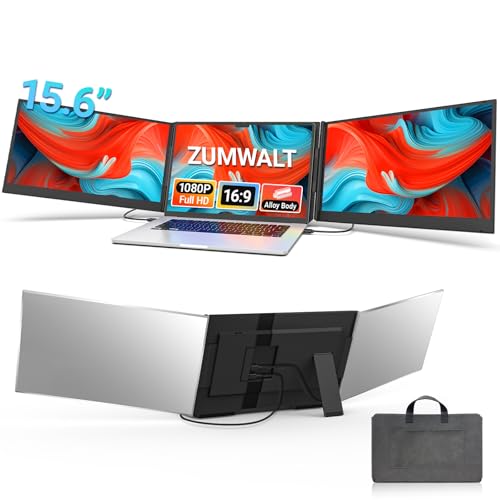
- Two 15.6-inch FHD displays
- Clip-free aluminum-alloy design
- Bag, cables, and adapter included
Best For: Travelers with full-featured USB-C laptops
Best Slim Clip-Free Design

- Two 15.6-inch FHD IPS screens
- 0.19-inch-thin clip-free design
- Needs full-featured USB-C
Best For: Slim triple-screen setups with compatible USB-C laptops
Lightweight Travel Pick
14.2-Inch Slim Screen Extender

- 1.87 lb and 0.27 in thin
- 14.2-inch FHD IPS display
- USB-C or HDMI plus USB-A setup
Best For: Travelers prioritizing a light second screen
Versatile Device Pick

- 14-inch 1080p IPS panel
- Multiple modes and 180° rotation
- Supports listed laptops and consoles
Best For: Using a second screen with several device types
Triple-Screen Pick

- Adds two 14-inch FHD screens
- Adjustable stand; 3.0 lb weight
- M-series Macs need an adapter for both screens
Best For: Mobile work requiring two additional displays
Flexible Single-Screen Pick
Funhill 14.1-Inch FHD Extender

- 14.1-inch 1080p IPS display
- Rotates up to 280 degrees
- USB-C or HDMI connectivity
Best For: Travelers needing one adjustable extra screen
More Vertical Workspace

- Two 16-inch 1920 × 1200 IPS screens
- 16:10 format shows more vertical content
- Needs two full-featured USB-C ports
Best For: Multi-app work on a three-screen setup
Clamp-Free Desk Setup
UK BONITOYS 14-Inch Dual Extender

- Two 14-inch 1080p screens
- Independent, adjustable support arm
- Screens store in the stretchable base
Best For: Triple-screen desks without laptop-lid clamps
Best Single-Screen Add-On – ROYY 14-Inch FHD Extender
Among laptop screen extenders, the ROYY is a straightforward choice when you want one extra 14-inch display rather than a full triple-screen setup. Its matte 1080p IPS panel is rated at 300 nits, and the screen rotates 180° for easier positioning or sharing.
Best For: Laptop users who want a compact second screen for documents, calls, or presentations.
Pros:
- 14-inch FHD IPS screen with a matte finish.
- Driver-free connection via full-featured USB-C, or HDMI with USB-A power.
- Supports extend, mirror, landscape, and portrait modes.
Cons:
- Adds one display, not two.
- Some older laptops may lack the required ports; check compatibility before buying.
Choose this model for a simpler two-screen workspace, especially if adjustable viewing angles matter more than maximum screen area.
Most Flexible Layout – 15.6-Inch Detachable Dual Extender
This is one of the more adaptable laptop screen extenders for buyers who want two additional 15.6-inch FHD displays. Its stand supports 235° horizontal and 90° vertical rotation, while the screens can detach for independent use.
Best For: Users who need a triple-screen workstation that can be rearranged for presentations or shared viewing.
Pros:
- Detachable displays support landscape, portrait, and stacked configurations.
- FHD IPS screens include built-in speakers.
- Driver-free setup; each detached side is listed at 2.1 pounds.
Cons:
- HDMI connections also require a USB-A-to-USB-C cable for power.
- The listing excludes base M1, M2, and M3 Mac chips.
The flexible stand and detachable design are the main reasons to choose it. Confirm your laptop’s ports and chip before ordering, particularly if you use a Mac.
Best Travel Kit – ZUMWALT P7 15.6-Inch Triple-Screen Extender
The ZUMWALT P7 targets travelers comparing laptop screen extenders with two full-size extra displays. It pairs two 15.6-inch 1080p screens with an aluminum-alloy shell, a clip-free design, and an included carrying bag.
Best For: Mobile workers who want a larger triple-screen setup and have compatible full-featured USB-C ports.
Pros:
- Two 15.6-inch FHD displays rated at 280 nits.
- Two USB-C cables can connect both screens when the laptop supports full-featured USB-C.
- Four-pound design includes a carrying bag, cables, and power adapter.
Cons:
- Laptops without full-featured USB-C and base M1/M2/M3 MacBooks need an additional H5-T cable and a driver.
- At four pounds, it adds noticeable weight to a travel bag.
It is worth considering if you want generous screen space without a clip resting on your laptop display. Check the connection requirements first: the simple two-cable setup does not apply to every laptop.
Best Slim Clip-Free Design – Synnov 15.6-Inch Extender
The Synnov stands out among laptop screen extenders for its stated 0.19-inch-thin, clip-free design. It provides two 15.6-inch FHD IPS screens for a triple-screen workspace, supported by an aluminum-alloy body and metal stand.
Best For: Remote workers who prioritize a slim, freestanding setup and have at least one full-featured USB-C port.
Pros:
- Two 15.6-inch FHD IPS screens with adjustable brightness.
- Clip-free design avoids mounting the extender on the laptop screen.
- Driver-free setup using two full-featured USB-C connections, or full-featured USB-C plus HDMI.
Cons:
- Requires at least one full-featured USB-C port; the listing says base M1/M2/M3 MacBooks are incompatible.
- Listed at four pounds despite its slim profile.
The thin body, stand, and included carry bag make it a practical portable option if your laptop meets the port requirements. Verify compatibility before treating it as a plug-and-play purchase.
Lightweight Travel Pick – 14.2-Inch Slim Screen Extender
Among laptop screen extenders, this 14.2-inch model stands out for its 1.87-pound weight and 0.27-inch profile. It adds a 1080p IPS display to compatible 14- to 17.3-inch laptops without taking up much bag space.
Best For: Frequent travelers who want a slim second screen for documents, calls, and reference material.
Pros:
- Matte, 300-nit FHD display with an adjustable viewing angle up to 226°.
- Extend, mirror, and portrait modes suit different workflows.
- Driver-free setup; USB-C, HDMI, and USB-A cables are included.
Cons:
- HDMI connections also require a USB-A cable.
- Provides one additional display, not a three-screen setup.
Choose it when low carrying weight matters more than maximum screen count. Check whether your laptop has full-function USB-C before relying on a single-cable connection.
Versatile Device Pick – KEFEYA 14-Inch FHD Extender
The KEFEYA is one of the laptop screen extenders to consider if your second display may also connect to a phone or game console. Its 14-inch, 1080p IPS panel pairs with included USB-C, HDMI, and USB-A cables for driver-free setup.
Best For: Buyers who want a laptop work screen with support for other compatible devices.
Pros:
- 300-nit, 72% NTSC display with adjustable picture settings.
- Mirror, extend, landscape, and portrait modes, plus 180° rotation.
- Listed support spans Windows, Mac, Android, and several game consoles.
Cons:
- At 1.04 kg, it is heavier than the 1.87-pound model in this roundup.
- HDMI use requires an additional USB-A-to-USB-C cable for power.
Its broad device list and flexible display modes are the main draws. For a tidy travel setup, confirm your device’s ports and plan for the extra power connection when using HDMI.
Triple-Screen Pick – Vixtan Dual 14-Inch Extender
For shoppers comparing laptop screen extenders by workspace size, the Vixtan adds two 14-inch FHD IPS screens for a triple-screen setup. It weighs 3.0 pounds and fits laptops listed at 13 to 17.3 inches.
Best For: Multitaskers who need two extra displays and can accommodate a larger travel accessory.
Pros:
- Two extra screens support extended, mirrored, and portrait modes.
- 1920 × 1080 IPS panels are listed at 300 nits with 100% sRGB coverage.
- Adjustable stand, 180° horizontal rotation, and included connection cables.
Cons:
- At 3.0 pounds, it adds more carrying weight than the single-screen options here.
- M1/M2/M3 MacBooks support only one added screen without a DisplayLink adapter.
- Flickering or low brightness may require a separate 5V/3A-or-higher power adapter.
This is the practical choice when screen count outweighs pack weight. MacBook owners should check the stated M-series limitation before expecting both additional displays to work.
Flexible Single-Screen Pick – Funhill 14.1-Inch FHD Extender
Among laptop screen extenders, this Funhill model is a straightforward way to add one 14.1-inch, 1080p IPS display. Its 280-degree rotation lets you adjust the viewing angle, while side buttons make brightness easy to change.
Best For: Travelers and remote workers who want one extra screen without installing drivers.
Pros:
- 1080p IPS display with a matte finish and 60Hz refresh rate.
- Connects through compatible USB-C or HDMI, with the listed cables included.
- Supports extended, duplicate, and portrait viewing modes.
Cons:
- USB-C video requires a full-featured USB-C port with DisplayPort support or Thunderbolt.
- HDMI connections need a separate USB-A or USB-C cable for power.
Choose this one if flexible positioning matters more than adding two displays. Check your laptop’s video-output capabilities before buying, especially if you plan to use a single USB-C cable.
More Vertical Workspace – Dual 16-Inch 1200p Extender
If you’re comparing laptop screen extenders for spreadsheets, code, or long documents, this model adds two 16-inch IPS displays. Each has a 1920 × 1200 resolution and a 16:10 aspect ratio, providing more vertical room than a standard 1080p screen.
Best For: People who want a three-screen workspace and have two full-featured USB-C ports on their laptop.
Pros:
- Two 16-inch, 350-nit displays expand the available workspace.
- Uses two USB-C cables and requires no driver installation.
- Open-frame aluminum design avoids clamps or hooks on the laptop.
Cons:
- The stated two-cable setup requires two full-featured USB-C ports.
- Two 16-inch screens take up more working space than a single-screen extender.
The 16:10 panels are the main reason to pick this setup: they give you room for more rows and lines of text. Confirm your laptop has both required USB-C video connections before ordering.
Clamp-Free Desk Setup – UK BONITOYS 14-Inch Dual Extender
This UK BONITOYS option takes a different approach from laptop screen extenders that attach to a lid: its stretchable base and support arm hold two 14-inch 1080p screens independently. That keeps the displays’ weight off your laptop screen while creating a three-screen workspace.
Best For: Desk-based users who want two extra displays without clamping anything to their laptop lid.
Pros:
- Independent support avoids putting pressure on the laptop screen.
- Displays rotate horizontally and vertically and can be detached.
- Both screens store in the base; a single 1.2-pound screen can be carried separately.
Cons:
- The complete base-and-screen setup weighs 5.2 pounds.
- Some M1, M2, and M3 MacBooks may need the seller’s H5-M cable to run both external displays.
The stand makes this a useful choice when lid-mounted extenders are not appealing. Its detachable-screen option adds flexibility, but MacBook owners should verify their two-display connection setup first.
How We Picked These Laptop Screen Extenders
We focused on a useful range of screen sizes, dual- and triple-screen configurations, portability claims, and connection options. The selected models include 14-inch and 14.1-inch choices, several 15.6-inch choices, and a 16-inch option with a listed 1200p resolution. Product names and specifications are a starting point, not proof of real-world compatibility or performance. Before buying, check the manufacturer’s current port, power, laptop-size, and operating-system requirements against your own device.
Quick Comparison: Which Setup Fits Your Day?
- One added screen: A dual-screen extender is the simpler choice when you need space for a second window and want to limit bulk.
- Two added screens: A triple-screen setup offers more room for side-by-side work, but typically demands more desk space, connections, and packing space.
- Smaller panels: Around 14 inches can suit frequent travel or tighter desks. Look at listed weight as well as diagonal size.
- Larger panels: A 15.6- or 16-inch screen gives windows more physical room, though the full assembly may be less convenient to carry.
Key Buying Factors for Laptop Screen Extenders
Fit and Stability
Check the supported laptop screen-size range and how the extender attaches. Your laptop’s lid thickness, shape, and hinge strength matter, especially with a screen mounted on each side. If you frequently use a small café table, compare the setup’s overall width and whether the screens can stand independently.
Ports, Power, and Display Support
USB-C does not always carry video: the laptop port may need DisplayPort Alt Mode or another supported video method. HDMI may handle the picture while USB supplies power. Confirm how many video outputs and cables a triple-screen model needs, and check whether your laptop can run the intended number of external displays. A listing’s “plug and play” claim does not replace those checks.
Resolution and Portability
Most picks list 1080p panels; the 16-inch option lists 1200p. Consider whether the added workspace is worth the weight, cables, and potential battery drain. For regular travel, compare packed dimensions and whether the screens detach or fold safely into a bag.
Who Should Buy Which Laptop Screen Extenders?
Choose a compact dual-screen model if you mainly work with two windows and move between locations often. Consider a 15.6-inch or 16-inch option if readable workspace matters more than the smallest bag footprint. A triple-screen extender makes the most sense when you routinely keep several applications visible and have confirmed your laptop supports the required displays. If your computer’s ports or display limits are unclear, verify them first; compatibility is more important than an extra inch of screen.