Choosing the right computer monitor for productivity can make long workdays easier, whether you are writing, analyzing spreadsheets, editing content, or juggling multiple apps at once.
Below, we focus on display size, resolution, ergonomics, and connectivity so you can find the best fit for your desk, workflow, and budget.
Best 10 Computer Monitor for Productivity Picks for 2026
Compact Office Pick
Philips 24 Inch FHD 100Hz Monitor

- 24-inch Full HD VA panel with strong contrast
- Three-sided near-borderless design for multi-monitor setups
- EasyRead mode plus Flicker-Free and Blue Light Filter
Best For: Everyday office work and compact productivity setups
Ultrawide Workspace Pick
Sceptre 34-Inch Curved WQHD Ultrawide

- 3440 x 1440 ultrawide panel for more workspace
- 21:9 format supports easier multitasking
- 99% sRGB and curved screen add versatility
Best For: Multitaskers who want one wide display instead of two
Balanced Desk Pick
Samsung 27-inch Borderless IPS Monitor

- 27-inch IPS panel with wide viewing angles
- 100Hz refresh and anti-glare comfort features
- Height-adjustable design with pivot support
Best For: Everyday office use with ergonomic flexibility
Premium QHD Pick
Dell 27 Plus QHD 144Hz Monitor

- 2560 x 1440 QHD panel for sharper workspaces
- Fully adjustable stand with height, tilt, pivot, and swivel
- Built-in dual 3W speakers and TÜV-certified eye comfort
Best For: Desk users who want sharper text and strong ergonomics
Ultra-Wide Multitasking Pick

- 21:9 Ultra-WQHD screen for more workspace
- PBP/PIP supports two sources at once
- Eye Saver Mode and Flicker Free for long workdays
Best For: people who want wide-screen multitasking and side-by-side windows
Best USB-C Ultrawide Value
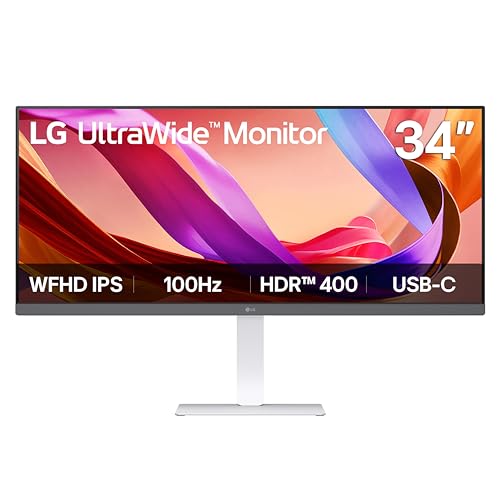
- 21:9 ultrawide panel adds room for multitasking
- USB Type-C simplifies laptop connections
- Height, tilt, and swivel adjustments improve comfort
Best For: laptop users who want an easy USB-C productivity setup
Compact Office Monitor Pick

- 23.8-inch FHD IPS format suits smaller desks
- 144Hz and 1ms MPRT keep movement smooth
- TÜV eye comfort certification supports long sessions
Best For: buyers who want a compact, no-fuss office monitor
Expansive 32-inch workspace
Samsung 32-inch Flat Computer Monitor

- Large 32-inch FHD panel for multitasking
- Three-sided borderless design suits dual-monitor setups
- Eye Saver Mode and Flicker Free help reduce strain
Best For: People who want a big, simple display for everyday productivity
Best Heavy-Duty Pick
Acer 21.5in FHD 100Hz Office Monitor

- 21.5-inch FHD panel fits smaller desks
- 100Hz refresh and 1ms response improve smoothness
- ZeroFrame design is friendly for dual-monitor setups
Best For: Office users who need a compact, budget-friendly screen
Comfort-first all-rounder

- Height, tilt, pivot, and swivel adjustments
- 144Hz refresh with 1ms MPRT for smoother motion
- Built-in speakers and eye-comfort features
Best For: Users who want an adjustable monitor for all-day comfort
Compact Office Pick – Philips 24 Inch FHD 100Hz Monitor
If you want a practical computer monitor for productivity, this 24-inch Philips keeps things simple and efficient. The Full HD VA panel delivers crisp text and solid contrast, while the three-sided near-borderless design makes it easier to build a clean dual-monitor desk setup.
Best For: Everyday office work, document reading, and compact workspaces that benefit from a clean multi-monitor layout.
Pros:
- 1920 x 1080 resolution with 100Hz refresh for smooth everyday use.
- VA panel offers deeper blacks and strong 3000:1 contrast.
- EasyRead mode is useful for long document sessions.
- Flicker-Free, Blue Light Filter, and VESA support add desk flexibility.
Cons:
- 1080p resolution is less spacious than QHD options.
- Only one HDMI port may limit simple cable setups.
- Brightness is moderate at 250 nits.
Overall, this is a straightforward productivity monitor that focuses on comfort, clarity, and value. It makes the most sense if you prioritize a tidy office display over premium resolution or advanced ergonomic features.
Ultrawide Workspace Pick – Sceptre 34-Inch Curved WQHD Ultrawide
For a computer monitor for productivity, this 34-inch Sceptre ultrawide gives you a lot of usable space to spread out windows. The 3440 x 1440 resolution and 21:9 aspect ratio are built for multitasking, and the curved panel helps the screen feel immersive on a wide desk.
Best For: Multitasking, spreadsheet work, and users who want extra horizontal room for multiple windows.
Pros:
- 3440 x 1440 WQHD resolution provides far more workspace than 1080p.
- 21:9 ultrawide format offers about 30% more screen space.
- 99% sRGB coverage is useful for color-conscious work.
- Curved design and dual DisplayPort inputs support a modern desk setup.
Cons:
- Large ultrawide size needs plenty of desk space.
- Built-in speakers and LED lighting are secondary to productivity features.
- 1-year warranty is shorter than some office-focused monitors.
This is the monitor to choose if screen real estate matters more than compact size. It is especially appealing when you want a single display that can replace a dual-monitor arrangement for work.
Balanced Desk Pick – Samsung 27-inch Borderless IPS Monitor
This Samsung 27-inch model is a well-rounded computer monitor for productivity if you want a larger screen without moving up to ultrawide. The IPS panel keeps colors consistent across the screen, and the 100Hz refresh rate helps the display feel smooth during work and everyday use.
Best For: General office work, shared desks, and users who want a comfortable 27-inch monitor with flexible adjustment.
Pros:
- 27-inch IPS panel delivers consistent color and wide 178-degree viewing angles.
- 100Hz refresh rate reduces lag and motion blur.
- Height adjustment and pivot support improve ergonomics.
- Anti-glare, flicker-free, and blue light reduction help during long sessions.
Cons:
- 1080p resolution is good for basics, but not as sharp as QHD.
- Response time is slower than gaming-oriented alternatives.
- Designed for business use, so it lacks premium productivity extras like higher resolution.
As a practical office monitor, this Samsung emphasizes comfort and flexibility more than flashy specs. It fits well for people who want an easy-to-live-with display for everyday tasks and long workdays.
Premium QHD Pick – Dell 27 Plus QHD 144Hz Monitor
If you want a more premium computer monitor for productivity, this Dell 27 Plus adds the sharper 2560 x 1440 resolution many desk workers prefer. The IPS panel, 350-nit brightness, and strong ergonomic stand make it a polished option for long hours at a workstation.
Best For: Users who want a sharper QHD workspace, strong adjustability, and built-in speakers.
Pros:
- QHD resolution gives more room for documents, spreadsheets, and side-by-side apps.
- Height, tilt, pivot, and swivel adjustments support better ergonomics.
- Integrated dual 3W speakers reduce desktop clutter.
- 4-star TÜV-certified display and flicker-free design support eye comfort.
Cons:
- 8ms response time is not the fastest in this group.
- Only one HDMI port may be limiting for some setups.
- Higher-end features come with a more premium positioning.
Overall, this Dell stands out as the most polished productivity-first choice here because it combines QHD sharpness with strong stand flexibility. It is especially appealing if you spend long days at your desk and value comfort as much as resolution.
Ultra-Wide Multitasking Pick – Samsung 34" ViewFinity S50GC
If you’re shopping for a computer monitor for productivity, this Samsung 34-inch ultra-wide is built to keep more on screen at once. The 21:9 3440 x 1440 panel gives you a lot of horizontal space for side-by-side windows, and PBP/PIP support makes it easier to review two sources or monitor one task while working on another.
Best For: Users who want an ultra-wide layout for spreadsheets, reference windows, and split-screen work.
Pros:
- 34-inch Ultra-WQHD 21:9 display offers strong screen real estate for multitasking.
- PBP and PIP let you use two inputs at once or keep a second source visible.
- 100Hz refresh rate helps motion look smoother during work and video.
- Eye Saver Mode, Flicker Free, and the ambient light sensor are useful for long sessions.
Cons:
- 2560 x 1440-style ultrawide workspace may be more monitor than some simple desk setups need.
- Brightness is listed at 300 cd/m², which is solid but not the highest in class.
- Requires enough desk width to fully take advantage of the 34-inch form factor.
This is a practical choice if productivity means less tab switching and more side-by-side workflow. The wide aspect ratio, multitasking features, and eye-care tools make it a strong fit for long office days.
Best USB-C Ultrawide Value – LG 34U530A-W UltraWide USB-C
This LG ultrawide is a smart computer monitor for productivity if you want a cleaner laptop-dock style setup. The 21:9 34-inch IPS panel gives you extra horizontal space for multiple windows, while USB Type-C, DisplayPort, and HDMI keep connectivity straightforward.
Best For: Laptop users who want one-cable convenience, wide workspace, and adjustable ergonomics.
Pros:
- 34-inch 21:9 UltraWide 2560 x 1080 display supports efficient multitasking.
- USB Type-C adds simple single-cable display and data connectivity.
- Height, tilt, and swivel adjustments help dial in a comfortable setup.
- DisplayHDR 400 and up to sRGB 99% coverage bring strong color and brightness for everyday use.
Cons:
- 2560 x 1080 resolution is less dense than higher-resolution ultrawides.
- Built-in speakers may be a nice extra, but they won’t replace dedicated audio for everyone.
- The 34-inch footprint still needs a reasonably wide desk.
For work-from-home or hybrid setups, this LG balances productivity-friendly screen space with easy cable management. It stands out if you want an ultrawide monitor that is comfortable, flexible, and simple to plug in.
Compact Office Monitor Pick – Dell 24 SE2426H IPS Monitor
If you want a simpler computer monitor for productivity, this Dell 24-inch model keeps things focused and affordable in a compact footprint. The 1080p IPS panel is a straightforward choice for everyday office work, and the 144Hz refresh rate plus 1ms MPRT add extra smoothness for scrolling and mixed work use.
Best For: Small desks, basic office work, and users who prefer a compact monitor over an ultrawide.
Pros:
- 23.8-inch FHD IPS panel offers a practical size for desks with limited space.
- 144Hz refresh rate and 1ms MPRT keep motion smooth for scrolling and general use.
- TÜV Rheinland 3-star eye comfort certification helps reduce harmful blue light.
- Thin bezels and 178° viewing angles make the display easy to share or place in a dual-monitor setup.
Cons:
- 1080p resolution is less spacious than ultrawide or higher-resolution productivity monitors.
- Tilt-only stand offers fewer ergonomic adjustments than more premium models.
- Smaller screen size may not suit users who keep many windows open at once.
This Dell is a good fit when you want a reliable, compact display rather than a large multitasking canvas. It covers the essentials well and should appeal to buyers who value simplicity, eye comfort, and desk efficiency.
Expansive 32-inch workspace – Samsung 32-inch Flat Computer Monitor
If you want a computer monitor for productivity with lots of room to spread out windows, this Samsung 32-inch flat display is built for a clean, simple desk setup. The three-sided borderless design helps it fit neatly into multi-monitor arrangements, while the 32-inch FHD panel gives you a large canvas for documents, spreadsheets, and calls.
Best For: Users who want a large, borderless monitor for everyday office work and multi-window productivity.
Pros:
- 32-inch screen offers ample space for side-by-side work
- Three-sided borderless design creates a cleaner multi-monitor look
- 75Hz refresh rate and AMD FreeSync help visuals stay smooth
- Eye Saver Mode and Flicker Free tech support longer sessions
Cons:
- 1080p resolution on a 32-inch panel is not the sharpest option for dense text
- Only one HDMI port is listed
- No height-adjustable stand is mentioned in the supplied details
Overall, this is a straightforward productivity monitor for people who value screen real estate and eye comfort over premium sharpness. It makes the most sense if you want a simple, business-friendly display for daily office tasks and occasional media use.
Best Heavy-Duty Pick – Acer 21.5in FHD 100Hz Office Monitor
This Acer monitor is a practical computer monitor for productivity if you want a smaller screen with modern motion support and a tidy footprint. Its 21.5-inch Full HD panel keeps text and images clear, while the near bezel-less ZeroFrame design helps when placing multiple monitors side by side.
Best For: Budget-conscious office users who want a compact monitor for desks with limited space.
Pros:
- 21.5-inch Full HD display keeps text and details clear
- 100Hz refresh rate can make scrolling and motion feel smoother
- 1ms response time helps reduce smearing or ghosting
- ZeroFrame design works well in multi-monitor layouts
Cons:
- Smaller 21.5-inch size may feel cramped for heavy multitasking
- Basic stand only includes tilt adjustment
- No built-in speakers are listed in the supplied details
For a smaller office monitor, this model delivers a lot of useful features without taking up much room. It is a solid fit if you want a compact everyday display that still offers smoother-than-basic refresh performance.
Comfort-first all-rounder – Dell 24 Plus S2425HSM
The Dell 24 Plus is a strong computer monitor for productivity if you want a balanced mix of comfort, adjustability, and smooth motion. Its 23.8-inch FHD panel gives you a practical amount of workspace, while the height, tilt, pivot, and swivel adjustments make it easier to dial in a comfortable setup for long workdays.
Best For: People who want a comfortable, adjustable monitor for work, browsing, and light gaming.
Pros:
- Height, tilt, pivot, and swivel adjustments support ergonomic positioning
- 144Hz refresh rate and 1ms MPRT deliver smoother motion
- Built-in dual 3W speakers add convenience for calls or videos
- 4-star TUV-certified eye comfort features help reduce blue light emissions
Cons:
- 8ms response time listed in the details may be less ideal for fast competitive gaming
- 23.8-inch screen is smaller than large-format productivity monitors
- Only HDMI connectivity is listed in the supplied specs
As a general-purpose display, this Dell model stands out for ergonomic flexibility and comfort-focused features. It is especially appealing if you want a desk-friendly monitor that can handle work during the day and entertainment after hours.
How We Picked the Best Computer Monitor for Productivity
We focused on monitors that support real work first: crisp text, comfortable viewing, useful screen space, and practical stand or mount options. We also looked at refresh rate and panel quality, but only where they add value for a Computer Monitor for Productivity rather than gaming hype.
Good choices in this roundup offer a balance of clarity, workspace, and everyday convenience, with attention to eye comfort features, USB-C or DisplayPort support where available, and sizes that fit both compact desks and larger setups.
Quick Comparison
If you want a simple rule of thumb: 24-inch FHD models are best for smaller spaces and basic office tasks, 27-inch QHD models are the sweet spot for most people, and 34-inch ultrawides are ideal for multitasking without a dual-monitor setup. Larger 32-inch screens work well if you prefer bigger text and a more spacious layout.
Key Buying Factors for Computer Monitor for Productivity
Resolution and Screen Size
Match resolution to size. On a 24-inch display, 1080p is usually fine. At 27 inches, QHD is noticeably sharper and easier on the eyes for text-heavy work. Ultrawide and 34-inch panels benefit from higher horizontal resolution because they give you room for two side-by-side windows.
Panel Type and Viewing Comfort
IPS panels are often preferred for office use because they typically offer better viewing angles and more consistent color. VA panels can provide stronger contrast, which some people like for reading and general use. If you work long hours, look for flicker-free certification and low blue light features.
Ergonomics and Adjustability
A height-adjustable stand is one of the most useful productivity features you can get. Tilt, swivel, and pivot help you align the screen properly and reduce neck strain. VESA compatibility is also valuable if you plan to use a monitor arm later.
Ports and Connectivity
For modern desks, USB-C can simplify laptop connections and charging. HDMI and DisplayPort are still the most common and reliable inputs, especially if you switch between a laptop, desktop, or docking station. Built-in speakers can be convenient, but they should be viewed as a bonus rather than a key buying reason.
Who Should Buy Which Computer Monitor for Productivity?
Choose a 24-inch FHD monitor if you want an affordable, compact option for email, documents, and standard office tasks. Pick a 27-inch QHD model if you want the best all-around mix of sharpness and workspace. Go with a 34-inch ultrawide if multitasking is a priority and you want fewer window-switching interruptions. A 32-inch flat monitor suits users who prefer larger on-screen elements and a more traditional layout.
For most buyers, the best Computer Monitor for Productivity is the one that matches both your workspace and the way you work every day. Prioritize comfort, clarity, and the right amount of screen real estate, and you will end up with a monitor that feels helpful from day one.