Docking stations with PCIe expansion can turn a compact laptop, Mac mini, or small-form-factor PC into a more capable workstation. Depending on the design, you can add an external graphics card, fast NVMe storage, expansion cards, displays, and high-speed peripherals without replacing the host computer.
This roundup includes direct-connect eGPU docks, Thunderbolt and USB-C docks, PCIe expansion chassis, and storage-focused options. Compare interface speed, compatibility, power delivery, expansion format, and the accessories you actually need before choosing.
Best 10 Docking Stations with Pcie Expansion Picks for 2026
Best OCuLink eGPU Dock
MINISFORUM DEG1 External GPU Dock

- PCIe 4.0 x4 OCuLink connection
- Accepts ATX and SFX PSUs
- Supports high-end external GPUs
Best For: OCuLink-equipped mini PCs needing external graphics expansion
Best Mini PC Storage Dock

- Pre-installed 2TB NVMe SSD
- Expandable to 8TB via M.2 PCIe slot
- Adds 2.5G LAN and card readers
Best For: Mac mini users needing compact storage and port expansion
Best Thunderbolt 5 Dock
Nusyn 15-in-1 PCIe Storage Dock

- Three Thunderbolt 5 ports
- M.2 NVMe support up to 8TB
- Up to 140W laptop charging
Best For: High-performance Mac and Windows multi-display workstations
Best PCIe 5.0 eGPU Dock
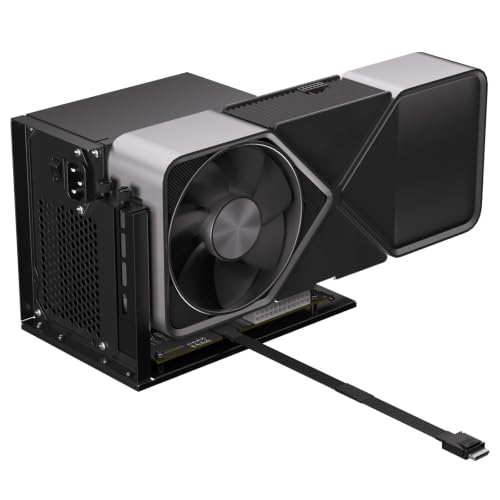
- PCIe 5.0 x4 up to 128Gbps
- Includes 30cm shielded cable
- Supports NVIDIA and AMD GPUs
Best For: OCuLink laptops and mini PCs needing external graphics
Best High-Speed Storage Dock
UGREEN Maxidok Thunderbolt 5 Dock

- Built-in PCIe Gen4x4 M.2 NVMe slot
- 17 ports with Thunderbolt 5 and 2.5GbE
- Supports high-resolution multi-monitor setups
Best For: Power users needing fast storage, displays, and broad connectivity
Best Dual-Slot Expansion Chassis

- Provides two PCIe 3.0 x16 expansion slots
- Uses a 40Gbps Thunderbolt connection
- Passive cooling keeps operation quiet
Best For: Adding capture, networking, or storage cards to compatible computers
Best Detachable Everyday Dock

- Detachable 6-in-1 hub for travel
- Supports up to three external displays
- Offers 100W charging and broad USB connectivity
Best For: Home offices and mobile users prioritizing flexible peripheral expansion
Best High-Speed NVMe Dock

- PCIe Gen4x4 M.2 NVMe slot
- Up to 140W laptop charging
- Triple 4K or dual 8K display support
Best For: Thunderbolt 5 users needing fast storage and extensive connectivity
Best External GPU Expansion

- PCIe 5.0 x4 Oculink connection
- Supports GPUs and other PCIe cards
- Works with ATX, SFX, and 1U PSUs
Best For: Mini PCs, handhelds, and laptops needing external PCIe cards
Best Dell Office Dock

- HDMI and mini-DisplayPort outputs
- Two USB-C and three USB-A ports
- Includes a 180W power adapter
Best For: Compatible Dell laptop users building a dual-monitor office setup
Best OCuLink eGPU Dock – MINISFORUM DEG1 External GPU Dock
The MINISFORUM DEG1 is designed for users seeking docking stations with PCIe expansion through an OCuLink connection. It provides a PCIe x16 physical slot with PCIe 4.0 x4 downlink support for compatible external graphics cards, including listed RTX 4090 and AMD RX 7900 XTX models.
Best For: OCuLink-equipped MINISFORUM mini PCs and other compatible systems needing an external GPU dock with flexible ATX or SFX power-supply support.
Pros:
- Supports PCIe 4.0 x4 OCuLink uplink and PCIe x16 downlink.
- Compatible with ATX and SFX standard power supplies.
- Designed to support high-end GPUs such as the RTX 4090 and RX 7900 XTX.
Cons:
- Only supports OCuLink and does not support Thunderbolt.
- OCuLink is not hot-pluggable; the system must be powered off first.
- Power supply and graphics card are not included.
This is a focused external GPU solution rather than a general-purpose port dock. Confirm that your computer has a compatible OCuLink interface and plan for a separate PSU before buying.
Best Mini PC Storage Dock – Mate Mini-B 2TB PCIe SSD Dock
The Mate Mini-B combines a compact Mac mini M4 stand with PCIe storage expansion, making it a practical choice among docking stations with PCIe expansion. It includes a pre-installed 2TB NVMe SSD and provides an M.2 2280 PCIe slot for expansion up to 8TB.
Best For: Mac mini M4 and M4 Pro users who want added NVMe storage, 2.5G networking, card-reader access, and additional USB connectivity in a compact stand.
Pros:
- Includes a pre-installed 2TB NVMe SSD and supports expansion up to 8TB.
- Offers an M.2 2280 PCIe slot supporting PCIe 3.0, 4.0, and 5.0 drives.
- Adds 2.5G Ethernet, SD4.0, USB-A, and USB-C connectivity.
Cons:
- Designed primarily for Mac mini M4 and M4 Pro systems.
- High-power peripherals may require an external PD adapter.
- An additional cable may be required for some other mini PCs or desktops.
Its main advantage is integrated storage expansion rather than graphics-card support. The included SSD and compact form factor make it especially convenient for file-heavy Mac mini setups.
Best Thunderbolt 5 Dock – Nusyn 15-in-1 PCIe Storage Dock
The Nusyn 15-in-1 is a high-bandwidth option among docking stations with PCIe expansion, pairing three downstream Thunderbolt 5 ports with an M.2 NVMe slot. It supports PCIe 4.0 x4 SSDs in full Thunderbolt mode and offers extensive display, networking, charging, and peripheral connectivity.
Best For: Mac and Windows users building demanding multi-display workstations with fast external storage, high-speed networking, and substantial laptop charging.
Pros:
- Supports an M.2 NVMe SSD up to 8TB with PCIe 4.0 x4 support.
- Provides three Thunderbolt 5 ports with up to 120Gbps bandwidth.
- Supports high-resolution multi-display setups and up to 140W laptop charging.
Cons:
- Full capabilities depend on a compatible Thunderbolt 5 computer and display setup.
- The dock’s one-year warranty is shorter than some competing options.
- It is a premium, feature-heavy choice for users who may not need every port.
This dock is best suited to performance-focused desks rather than simple peripheral expansion. Its PCIe 4.0 x4 storage support and Thunderbolt 5 bandwidth are the key reasons to consider it.
Best PCIe 5.0 eGPU Dock – RGEEK OCuLink Graphics Dock
The RGEEK OCuLink eGPU Dock is a straightforward choice for users comparing docking stations with PCIe expansion for external graphics. Its PCIe x16 enclosure interface supports PCIe 5.0 x4 transmission up to 128Gbps and is backward compatible with PCIe 4.0 and 3.0.
Best For: Laptop, NUC, and mini PC users with a compatible OCuLink path who want external NVIDIA or AMD graphics for gaming, rendering, 3D work, or AI workloads.
Pros:
- Supports PCIe 5.0 x4 transmission up to 128Gbps bidirectional bandwidth.
- Includes a factory-soldered 30cm OCuLink cable with EMI shielding.
- Works with NVIDIA and AMD graphics cards and includes status indicators.
Cons:
- Graphics card and power supply are not included.
- Requires an ATX power supply sized above the GPU’s full-load requirement.
- Not hot-pluggable; the system must be shut down before connecting or disconnecting.
This dock offers strong expansion potential, but PCIe 5.0 speeds require a compatible PCIe 5.0 source or adapter. Verify your system’s OCuLink implementation and install the required GPU drivers before use.
Best High-Speed Storage Dock – UGREEN Maxidok Thunderbolt 5 Dock
If you want docking stations with pcie expansion plus substantial storage and display bandwidth, the UGREEN Maxidok combines a built-in M.2 NVMe PCIe Gen4x4 slot with Thunderbolt 5 connectivity. Its 17-port layout is suited to demanding desktop setups, though the M.2 slot has specific drive-size and heatsink limits.
Best For: Thunderbolt 5 Windows workstations and compatible Mac setups needing fast external NVMe storage, multiple displays, and extensive connectivity.
Pros:
- Built-in M.2 NVMe PCIe Gen4x4 slot supports compatible 2230–2280 SSDs up to 8TB.
- Offers 17 ports, including Thunderbolt 5, USB, 2.5GbE, DisplayPort, audio, and card readers.
- Supports up to triple independent displays on Windows, including 8K output configurations.
- Includes up to 240W total system power and active cooling.
Cons:
- The M.2 slot does not support SSDs wider than 24 mm or heatsinks taller than 12 mm.
- Mac display support is limited to two external displays.
- HDMI monitors require an active DisplayPort-to-HDMI adapter or cable.
This is a feature-rich choice when PCIe-based NVMe storage matters as much as port expansion. Check your SSD dimensions, computer compatibility, and display-adapter requirements before buying.
Best Dual-Slot Expansion Chassis – Thunderbolt 3 Dual PCIe Dock
For users specifically shopping for docking stations with pcie expansion, this external chassis adds two PCIe 3.0 x16 slots through a Thunderbolt 3 connection. It is designed for installing expansion cards such as capture, networking, and storage cards rather than serving as a general-purpose port hub.
Best For: Laptop, NUC, and desktop users who need two external PCIe slots for compatible expansion cards.
Pros:
- Adds two PCIe 3.0 x16 slots over a 40Gbps Thunderbolt connection.
- Supports cards such as video capture, network adapter, and NVMe storage cards.
- Compact aluminum enclosure uses passive cooling for silent operation.
- Includes a 60W power adapter, up to 30W through the PCIe slots, and an 8-pin power cable.
Cons:
- It has one external connection port and is not a broad multi-port docking station.
- Installed PCIe cards still require their own drivers.
- Card size is limited to 205mm x 25mm x 145mm.
This chassis is the most direct fit for true external PCIe expansion in the group. Confirm your host supports Thunderbolt 3, Thunderbolt 4, or USB4 and verify both card dimensions and power needs.
Best Detachable Everyday Dock – Anker Nano 13-in-1 Dock
The Anker Nano is a practical everyday dock for users comparing docking stations with pcie expansion but primarily needing peripheral and display connectivity. Its detachable 6-in-1 USB-C hub improves portability, while the main dock provides triple-display support, wired networking, card readers, and up to 100W laptop charging.
Best For: Home-office and travel users who want flexible USB-C connectivity, multiple displays, and a detachable hub rather than an internal PCIe card slot.
Pros:
- Detachable 6-in-1 hub supports switching between desk and travel use.
- Provides two HDMI ports and one DisplayPort for up to three connected displays.
- Includes Gigabit Ethernet, USB ports, SD/TF readers, audio, and up to 100W laptop charging.
- Includes a 140W power adapter and supports plug-and-play setup without drivers.
Cons:
- It does not provide a PCIe expansion slot.
- macOS mirrors external displays rather than providing independent multi-monitor output.
- The dock requires an upstream laptop connection before its ports and lighting activate.
This is a strong general-purpose alternative when your expansion needs involve displays and USB peripherals instead of PCIe cards or NVMe storage. It is especially convenient if you regularly move between a fixed desk and mobile work.
Best High-Speed NVMe Dock – Brydge Stone Pro TB5
The Brydge Stone Pro TB5 is a strong choice among docking stations with PCIe expansion for compatible Thunderbolt 5 laptops. Its built-in M.2 NVMe slot adds PCIe Gen4x4 storage expansion, while Thunderbolt 5 connectivity supports high-bandwidth displays and peripherals.
Best For: Thunderbolt 5 laptop users who want fast NVMe storage, high-wattage charging, and multi-display connectivity in one dock.
Pros:
- PCIe Gen4x4 M.2 NVMe expansion with claimed speeds up to 7,000 MB/s.
- Supports up to three 4K displays at 144Hz or two 8K displays at 60Hz with compatible setups.
- Provides up to 140W laptop charging and a broad selection of ports, including 2.5Gb Ethernet and SD 4.0.
Cons:
- NVMe SSD is sold separately.
- Key performance features require a compatible Thunderbolt 5 laptop and displays.
This is the most complete option here for users who want a premium Thunderbolt dock with internal PCIe-based storage expansion rather than a basic port replicator.
Best External GPU Expansion – JMT PCIe 5.0 Oculink Dock
The JMT Dock-OC7 takes a more specialized approach to docking stations with PCIe expansion, providing a direct Oculink connection for external PCIe cards. It can support GPUs, network cards, sound cards, capture cards, and NVMe, U.2, or U.3 storage when paired with compatible hardware.
Best For: Mini PC, handheld gaming console, and laptop users who need external GPU or other PCIe card expansion.
Pros:
- Supports PCIe 5.0 x4 Gen4 bandwidth up to 128G and is backward compatible with Gen4 and Gen3.
- Works with external GPUs and several other PCIe card types.
- Compatible with ATX, SFX, and small 1U power supplies, with GPU power supplied by the PSU.
Cons:
- Requires a compatible Oculink connection or an M.2-to-Oculink adapter board.
- A 500W-or-higher power supply is recommended and is not presented as included.
- Maximum performance depends on host PCIe 5.0 support.
Unlike a conventional USB-C dock, the Dock-OC7 is an open expansion platform aimed at users building a serious external GPU or PCIe-card setup.
Best Dell Office Dock – WD19S Dual-Monitor Dock
The Dell WD19S is a practical office-focused option among docking stations with PCIe expansion, using a USB-C connection to consolidate displays, networking, and peripherals. It offers HDMI, mini-DisplayPort, USB-C, USB-A, and RJ-45 Ethernet ports for compatible laptops.
Best For: Dell laptop users who need a straightforward dual-monitor workstation dock with everyday peripheral connectivity.
Pros:
- Includes HDMI, mini-DisplayPort, two USB-C ports, three USB-A 3.0 ports, and RJ-45 Ethernet.
- Supports laptops with DisplayPort over USB-C or Thunderbolt 3.
- Includes a 180W power adapter in the listed bundle.
Cons:
- Compatibility is described for select Dell Inspiron, Latitude, Precision, XPS, and Venue systems rather than all laptops.
- It does not list an internal M.2 or other dedicated PCIe card expansion slot.
- Video capability depends on the connected laptop and its USB-C or Thunderbolt support.
The WD19S is better suited to conventional desk expansion than advanced PCIe hardware upgrades, making it a sensible pick for Dell-centered monitor and peripheral setups.
How We Picked These Docking Stations with Pcie Expansion
We selected products across the main PCIe expansion categories rather than treating every dock as interchangeable. The list includes OCuLink and PCIe eGPU adapters for maximum graphics bandwidth, Thunderbolt 5 and Thunderbolt 3 docks or chassis for broader laptop compatibility, storage-oriented Mac mini docks, and conventional USB-C business docks with strong display support.
Our comparisons focus on the connection between the host computer and dock, supported PCIe lanes or expansion slots, power delivery, display outputs, storage compatibility, operating-system support, enclosure design, and practical setup requirements. Because specifications can vary by host system, confirm the manufacturer’s current limits before ordering.
Quick Comparison
| Best For | Look For | Trade-Off |
|---|---|---|
| External GPU performance | OCuLink or direct PCIe connection, adequate PSU, GPU clearance | Usually requires a separate graphics card and power supply |
| Mac mini storage expansion | USB-C or Thunderbolt bandwidth, M.2 NVMe support, matching form factor | Not a replacement for a full desktop PCIe slot |
| Flexible professional expansion | Thunderbolt 5 or a PCIe chassis with standard slots | Higher cost and possible bandwidth sharing |
| Office docking | USB-C power delivery, dual-display support, Ethernet, USB ports | May offer little or no true internal PCIe expansion |
Key Buying Factors for Docking Stations with Pcie Expansion
Connection and Bandwidth
OCuLink and direct PCIe designs can provide a more direct path to an external GPU, while Thunderbolt docks are easier to use with compatible laptops and offer a convenient mix of displays, USB, networking, and storage. Thunderbolt 5 generally provides more headroom than Thunderbolt 3, but the host computer, cable, and operating system must all support the expected mode.
Expansion Type
Check whether the product accepts a full desktop graphics card, an M.2 NVMe drive, a low-profile PCIe card, or multiple standard PCIe cards. A PCIe x16 physical connector may not provide x16 electrical bandwidth, so read the lane specification carefully. Also check GPU length, thickness, auxiliary power, cooling, and whether a power supply is included.
Power, Displays, and Compatibility
For laptop docks, compare USB-C Power Delivery with your computer’s charging requirement. For eGPUs, use a PSU capable of handling both the graphics card and dock. Verify display resolution and refresh-rate limits, operating-system support, sleep and wake behavior, and whether the dock requires drivers. Macs and Windows PCs can differ substantially in external GPU and PCIe support.
Ports and Everyday Usability
Count the ports you will use simultaneously, including Ethernet, audio, card readers, USB-A, USB-C, and display outputs. A compact hub is convenient, while a powered desktop dock or chassis is usually better for permanent workstation setups. Look for a sturdy enclosure, reliable cooling, a suitably long cable, and accessible power controls.
Who Should Buy Which Docking Stations with Pcie Expansion?
Choose an OCuLink or direct PCIe eGPU dock if gaming, 3D work, rendering, or AI acceleration is the priority and your computer supports the required connector. Choose a Thunderbolt 5 dock or PCIe chassis for a flexible workstation with multiple peripherals, displays, or expansion cards. Choose a Mac mini NVMe dock if you mainly need affordable, tidy storage expansion beneath or beside the computer.
Choose a conventional USB-C business dock when charging, monitors, networking, and everyday peripherals matter more than installing a PCIe card. Before checkout, confirm the host port standard, included power adapter, required cables, storage or GPU compatibility, and return policy.