USB switch boxes for desktops make it easier to share keyboards, mice, printers, scanners, and other USB peripherals between two or more computers. Instead of unplugging cables repeatedly, you can press a button or use a wired controller to move control to another system.
This roundup compares 10 options across USB 2.0 and USB 3.0 designs, port counts, switching methods, compatibility, and practical desktop use. Use the guide below to narrow the choices based on speed, device support, and the number of computers or peripherals you need to connect.
Best 10 USB Switch Boxes for Desktops Picks for 2026
Best All-Around Choice
UGREEN 2-Computer USB 3.0 Switch
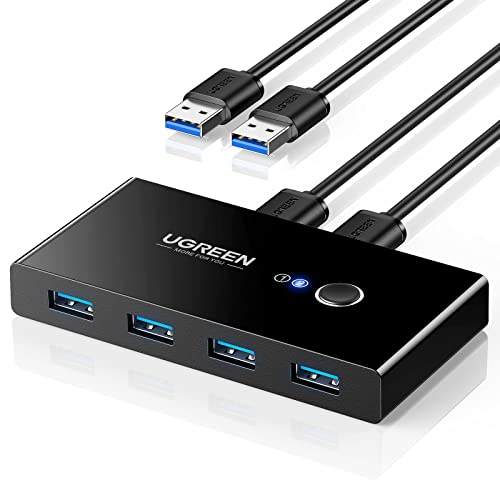
- Shares four USB devices between two computers
- Up to 5Gbps USB 3.0 data transfer
- One-button, driver-free switching
Best For: Dual-computer desktops sharing multiple USB peripherals
Best for Simple Peripheral Sharing

- USB 3.0 speeds up to 5Gbps
- One-touch control with LED indicators
- No external power or drivers required
Best For: Sharing a USB peripheral between two computers
Best for OS Flexibility
BENFEI 2-Computer USB 3.0 Switch

- Supports Windows, Mac, Linux, and Chrome OS
- Shares four USB devices between two computers
- 5Gbps performance with push-button control
Best For: Mixed-platform desktops with multiple shared peripherals
Best for Maximum Port Count

- Shares seven USB devices between two computers
- Four USB-A and three USB-C ports
- Includes a separate controller
Best For: Large dual-computer workstations with mixed USB peripherals
Best 4-Computer USB Switch

- Shares four USB devices among four computers
- Includes wired controller and LED indicators
- Plug-and-play across major operating systems
Best For: Four-computer workstations with several shared USB peripherals
Best Neat Desktop Setup
ATEN US224 2-Computer USB Switch

- Shares four USB devices between two computers
- All-in-one design helps reduce cable clutter
- Includes a remote port selector
Best For: Two-computer desks that prioritize a tidy installation
Best Simple Manual Switch

- Lets four computers share one USB device
- Uses dedicated physical push buttons
- Compact design supports USB 1.1 and 2.0
Best For: Simple four-computer setups sharing one printer or peripheral
Fast Desktop Sharing

- Shares four USB-A devices between two computers
- Up to 5Gbps transfer speeds
- Includes two 1.5-meter cables
Best For: Two-computer desktop workstations needing fast USB peripheral sharing
Reliable Everyday Sharing

- Shares four USB 2.0 devices between two computers
- One-button switching with active-device LEDs
- Optional micro-USB power input
Best For: Office desktops sharing standard USB peripherals
Powered USB 3.0 Choice
Two-Computer Peripheral Switcher

- Four USB 3.0 ports with up to 5Gbps speeds
- Includes 5V power port and Type-C cable
- Driver-free Windows, Mac, Linux, and Chrome OS support
Best For: Fast peripheral sharing with optional external power
Best All-Around Choice – UGREEN 2-Computer USB 3.0 Switch
For shoppers comparing USB switch boxes for desktops, the UGREEN USB 3.0 Switch is a flexible option for sharing up to four USB peripherals between two computers. Its one-button control, 5Gbps transfer support, and included USB cables suit workstations that use a shared keyboard, mouse, printer, scanner, or storage device.
Best For: Home offices and dual-computer desktops that need to share several USB devices.
Pros:
- Shares four USB devices between two computers.
- Supports USB 3.0 transfer speeds up to 5Gbps and is backward compatible with USB 2.0.
- Plug-and-play compatibility with Windows, macOS, Chrome OS, and Linux.
- Includes two 1.5-meter USB 3.0 data cables.
Cons:
- Does not support monitor or video transmission, so it is not a full KVM switch.
- Power adapter is not included for the extra USB-C power input.
- USB-C-only computers may require a USB-C-to-A adapter.
This is a strong general-purpose pick when USB peripheral sharing is the priority. The four ports and broad operating-system support add convenience, while optional external power helps with higher-power devices.
Best for Simple Peripheral Sharing – Tripp Lite 4-Port USB Switch
The Tripp Lite U359-004 is a straightforward choice among USB switch boxes for desktops. It lets one USB 3.0 peripheral be shared between two computers through a compact four-port design, with one-touch switching and LED status indicators for quick control.
Best For: Users who want a simple, driver-free switch with a long warranty for sharing USB peripherals.
Pros:
- Supports USB 3.0 data rates up to 5Gbps.
- One-touch switching and blue LEDs show which computer has control.
- Backward compatible with earlier USB generations.
- Requires no external power, software, or drivers.
Cons:
- Designed to share one USB 3.0 peripheral between two computers rather than multiple peripherals between both systems.
- Host-to-peripheral cable distance is limited to 16 feet.
- The supplied notes list camera compatibility but do not specify compatibility details for every peripheral type.
Choose this model for uncomplicated USB sharing and minimal setup. Its 5Gbps support and three-year limited warranty make it especially appealing for users who value simple operation and manufacturer support.
Best for OS Flexibility – BENFEI 2-Computer USB 3.0 Switch
The BENFEI USB 3.0 Switch is a practical option for USB switch boxes for desktops used with different operating systems. It shares four USB devices between two computers, supports up to 5Gbps, and uses a push-button control with LED status indication.
Best For: Mixed Windows, Mac, Linux, or Chrome OS setups that need to share several USB accessories.
Pros:
- Shares four USB peripherals between two computers.
- Supports USB 3.0 speeds up to 5Gbps and USB 2.0 backward compatibility.
- Compatible with Windows, Mac OS, Linux, and Chrome OS.
- Includes an 18-month unconditional warranty and a USB-A charging cable.
Cons:
- Requires BENFEI USB-A-to-USB-A cables for connection.
- Power adapter is not included for the USB-C power input.
- External power may be needed when using higher-power devices.
This model stands out for broad platform compatibility and generous peripheral capacity. Confirm your computer has suitable USB-A connectivity, and plan for external power if your setup includes several demanding devices.
Best for Maximum Port Count – 7-Port USB 3.0 Sharing Switch
For desktops with an unusually large accessory collection, this 7-Port USB 3.0 Switch offers more connection capacity than typical USB switch boxes for desktops. It can switch seven USB devices between two computers, combining four USB-A ports and three USB-C ports with one-button control.
Best For: Dual-computer workstations with a mix of USB-A and USB-C peripherals.
Pros:
- Shares up to seven USB devices between two computers.
- Provides four USB-A ports and three USB-C ports.
- Supports devices such as keyboards, mice, printers, webcams, microphones, drives, and card readers.
- Includes a USB 3.0 cable, controller, and user manual.
Cons:
- The supplied notes do not state a USB 3.0 transfer-speed rating.
- Only one USB 3.0 cable is listed as included, so additional connection cables may be needed.
- The product notes do not specify operating-system compatibility or external power requirements.
This is the capacity-focused choice for a crowded two-computer desk. Its combination of USB-A and USB-C ports reduces the need for adapters, but buyers should verify host connections and power requirements before purchase.
Best 4-Computer USB Switch – 4-in-4-out USB 2.0 Switcher
For shoppers comparing usb switch boxes for desktops, this DGODRT model is built for setups where four computers need access to the same four USB 2.0 peripherals. It supports up to 480Mbps and offers both front-panel buttons and a wired desktop controller for switching.
Best For: Offices, shared workstations, classrooms, and home setups with four computers and multiple USB peripherals.
Pros:
- Lets four computers share four USB devices, including keyboards, mice, printers, scanners, and flash drives.
- Includes a wired desktop controller and LED indicators for convenient source selection.
- Plug-and-play compatibility with Windows, macOS, Linux, and Chrome OS.
- Includes four USB cables and supports USB 2.0 transfer speeds up to 480Mbps.
Cons:
- USB 2.0 limits transfer speeds compared with newer USB standards.
- An external 5V/1A power adapter may be needed for high-power devices such as hard drives, and it is not included.
This is the most flexible option here for a four-computer, four-device arrangement. Its included remote and cables make installation easier, while the optional power requirement is worth considering if your peripherals draw substantial power.
Best Neat Desktop Setup – ATEN US224 2-Computer USB Switch
The ATEN US224 is a tidy choice among usb switch boxes for desktops when two computers need to share four USB peripherals. Its all-in-one design helps reduce cable clutter, and the included remote port selector allows the switch to be placed conveniently on the desk.
Best For: Two-computer workstations sharing a keyboard, mouse, printer, and another USB peripheral.
Pros:
- Allows two computers to share four USB devices.
- Built-in USB ports and an all-in-one design help keep installations organized.
- Includes a remote port selector for convenient switching and placement.
- Supports Windows, macOS, and Linux with USB 2.0 transfer rates up to 480Mbps.
Cons:
- Designed for two computers rather than larger multi-computer setups.
- Non-powered in standard use, although an optional USB power adapter is supported.
The US224 focuses on simple sharing and a clean desk layout rather than maximum expansion. It is a practical fit for a two-PC setup, especially when reducing cable clutter is a priority.
Best Simple Manual Switch – 4-Port USB Sharing Switch Box
This OLLGEN manual switch is a straightforward option among usb switch boxes for desktops. It lets four computers share one USB device, such as a printer, scanner, camera, or keyboard, with dedicated push buttons for selecting the connected computer.
Best For: Basic four-computer setups that need to share one USB peripheral at a time.
Pros:
- Supports four computers sharing one USB device.
- Dedicated front-panel buttons make computer selection simple.
- Compact, portable design is easy to carry and position.
- Compatible with USB 1.1 and USB 2.0 and supports transfer rates up to 480Mbps.
Cons:
- Shares only one USB device, unlike models designed for multiple peripherals.
- Its listed operating-system support is centered on older Windows versions and Mac OS.
- Manual button switching provides fewer convenience features than a wired remote controller.
This model keeps the job simple and affordable in concept: connect one shared USB device and select among four computers with physical buttons. It is best suited to legacy or uncomplicated setups rather than modern multi-device workstations.
Fast Desktop Sharing – LLYDZKG USB 3.0 Switch
For shoppers comparing usb switch boxes for desktops, the LLYDZKG LLY-G402 stands out when two computers need access to several peripherals at USB 3.0 speeds. It connects up to four USB-A devices and switches between computers with one button, but it does not carry monitor or video signals.
Best For: Desktop workstations that share keyboards, mice, storage, printers, or other USB peripherals between two computers.
Pros:
- Supports up to 5Gbps USB 3.0 transfer speeds and works with USB 2.0 and 1.1 devices.
- Shares four USB-A peripherals between two computers with one-button switching.
- Includes two 1.5-meter USB-A cables and has a compact aluminum housing.
- Works without additional drivers on Windows, Mac, Linux, and Chrome OS.
Cons:
- It is a USB switch, not a video KVM, so it cannot switch monitors.
- Designed for USB-A connections; newer USB-C-only computers may require an adapter.
The LLY-G402 is a practical pick when fast peripheral sharing and tidy cable management matter more than display switching. Its included long cables give flexible placement on a desktop.
Reliable Everyday Sharing – UGREEN 2-in-4 USB Switch
The UGREEN USB Switch Selector is a straightforward option among usb switch boxes for desktops, letting two computers share four USB 2.0 peripherals through a single button. It is suited to routine office accessories and includes an optional micro-USB power input for devices that need additional power.
Best For: Home and office desktops sharing keyboards, mice, printers, scanners, card readers, and similar USB 2.0 devices.
Pros:
- Switches four USB peripherals between two computers with one button.
- Driver-free compatibility includes Windows, Mac OS X, Linux, and Chrome OS.
- LED indicators show which computer is active.
- Optional 5V micro-USB power can help support multiple connected devices.
Cons:
- USB 2.0 limits data transfer speed compared with USB 3.0 alternatives.
- Power adapter and charging cable are not included.
- It does not support monitor or video transmission.
Choose the UGREEN model when dependable, basic peripheral sharing is the priority. It offers broad operating-system support and useful optional power, though it is less suitable for frequent large-file transfers.
Powered USB 3.0 Choice – Two-Computer Peripheral Switcher
This USB 3.0 switcher is a strong contender for usb switch boxes for desktops when fast peripheral access and external power are important. It lets two computers share four USB devices at up to 5Gbps, while its 5V power port helps provide a more stable connection for demanding devices.
Best For: Users switching USB 3.0 peripherals such as printers, webcams, keyboards, mice, and USB storage between two computers.
Pros:
- Four USB 3.0 ports support transfer rates up to 5Gbps and are backward compatible.
- One-button switching and an LED indicator make source selection simple.
- Includes a 5V power port and Type-C power cable for added device stability.
- Supports Windows, macOS, Chrome OS, and Linux without extra drivers.
Cons:
- Keyboard hotkeys are not supported for switching.
- External power may be needed for hard drives and other demanding USB devices.
- It does not switch monitor or video signals despite being described as a KVM switcher.
This model makes sense for a performance-oriented desktop setup that benefits from USB 3.0 and optional powered operation. The lack of hotkey control means switching remains a physical-button task.
How We Picked These USB Switch Boxes for Desktops
We focused on the features that matter most in everyday desktop setups: the number of host computers and shared USB ports, USB version, advertised transfer speed, switching method, included cables or remote controls, and compatibility with common peripherals. We also considered whether a model is better suited to simple input devices or to higher-bandwidth equipment such as external drives.
These products are USB peripheral switches, not full video KVMs. They can share USB devices between computers, but they generally do not switch monitors, speakers, or video signals unless a specific product says otherwise.
Quick Comparison
| Feature | What to look for | Best suited to |
|---|---|---|
| USB 2.0 | Lower-speed peripheral sharing | Keyboards, mice, printers, and basic scanners |
| USB 3.0 | Up to 5Gbps under suitable conditions | Faster storage, scanners, and mixed peripherals |
| Four shared ports | Connect several devices at once | Full desktop peripheral setups |
| Two host ports | Switch between two computers | Home offices and dual-computer desks |
| Manual or wired control | Button placement affects convenience | Desks where the switch is hard to reach |
Key Buying Factors for USB Switch Boxes for Desktops
USB Version and Speed
USB 3.0 models are the more flexible choice when you plan to share external hard drives, flash drives, card readers, or other data-heavy devices. USB 2.0 is usually adequate for keyboards, mice, printers, and many scanners, and can be a sensible budget option for basic peripherals.
Port and Host Configuration
Most choices here connect two computers to four shared USB devices. Check the wording carefully: a “4-port” design may describe the shared peripheral ports, while the number of host inputs determines how many computers can use them. Four-computer models are useful for larger workstations but may use a different switching layout.
Power and Compatibility
Confirm whether the switch is bus-powered or accepts an optional power adapter. High-draw devices and several connected peripherals may work more reliably with additional power. Also check your computer’s available USB connector type and whether the included cables reach comfortably.
Control and Placement
A front button is simple, while a wired desktop controller can keep the switch itself out of sight. Place the selector where it is easy to identify and press without disturbing connected cables.
Who Should Buy Which USB Switch Boxes for Desktops?
Choose a USB 3.0 switch with four shared ports if you use two computers and want to share a broad mix of peripherals, especially storage or faster scanners. A USB 2.0 model is a practical fit for a keyboard, mouse, printer, or basic scanner when speed is not important.
Look for a model with a remote selector if your computers or USB cables are tucked beneath a desk. Choose a higher-port or multi-computer design only when you genuinely need its extra connections; otherwise, a simpler two-computer switch is typically easier to configure and use. Before buying, verify the port layout, cable requirements, power expectations, and whether your intended devices are supported.